![Fundmore-Logo.png]](https://help.fundmore.ai/hs-fs/hubfs/Fundmore-Logo.png?height=50&name=Fundmore-Logo.png)
Table of Contents
'Stakeholder's Details' Widget Features & Functionality
‘Stakeholder’s Details’ Widget Tabs
Create PAD per Requested Product
Editing a Stakeholder’s Details
Brokers, Lawyers and Third-Party Stakeholders
Adding a New Broker at the Application Level
Adding a Lawyer at the Application Level
Broker Management: Implementation at the Application Level
Lawyer Management: Implementation at the Application Level
Introduction
The “Stakeholder Details” widget is used to manage all stakeholders associated with an application. These stakeholders typically include borrowers, co-borrowers, guarantors, lawyers, brokers, third parties, and signing officers, amongst others. Applications ingested through POS systems will automatically assign stakeholders to their appropriate customer types, and sort their information into the relevant fields. The different tabs of the widget allow the stakeholder’s details to be segmented by their general information, contact information, current/previous addresses, compliance information, and PAD information.
The ‘Stakeholder’s Details’ widget is located within the application dashboard. By default, it is positioned at the bottom of the dashboard as the last widget.
'Stakeholder's Details' Widget Features & Functionality
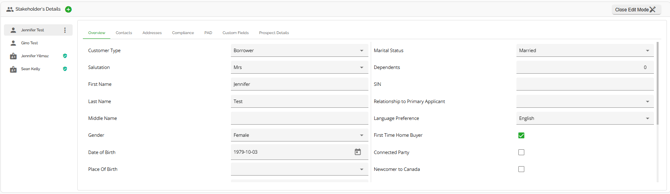
Stakeholder List - The list of all stakeholders for a given application. Located on the left hand side of the widget.
Stakeholder Icon - The black icon positioned to the left of a stakeholder's name. When you hover your cursor over it, a pop-up will appear, indicating the stakeholder's role.
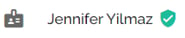
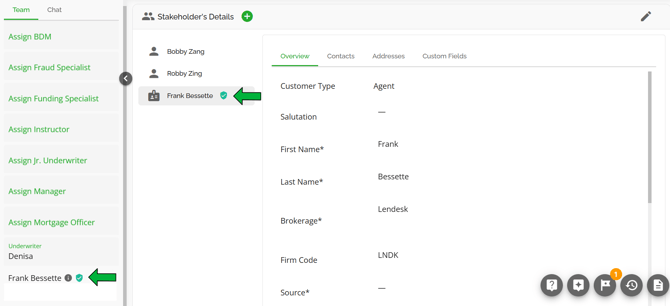
Stakeholder Badges - You can view assigned brokers in the “Team” section of the left sidebar menu, as well as in the Stakeholder widget.
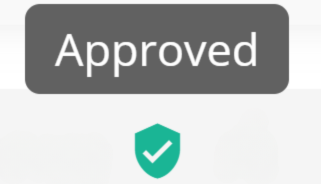
- Green Badge: This means the broker is approved within the ‘Broker Management’ section of the Manager Portal.
- Red Badge: This means the broker is blocked within the ‘Broker Management’ section of the Manager Portal.
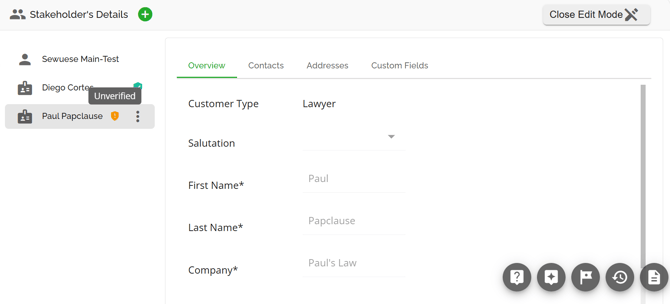
- Orange Badge: This indicates that a broker is unverified. Brokers on the ‘Unverified’ list within the ‘Broker Management’ section of the Manager Portal can not be added as stakeholders to existing files. They will only appear if they submit an application, and their lack of verification will be flagged in the ‘Stakeholder’s Details’ widget and the ‘Team’ section of the left-hand sidebar.
|
|
⇐ UNAPPROVED BROKER |
|
|
⇐ VERIFIED BROKER |
 |
⇐ UNVERIFIED BROKER |

Adding a Stakeholder
To add a stakeholder to an application:
1. Click on the Green Plus button to the right of the widget’s name (Stakeholder’s Details).
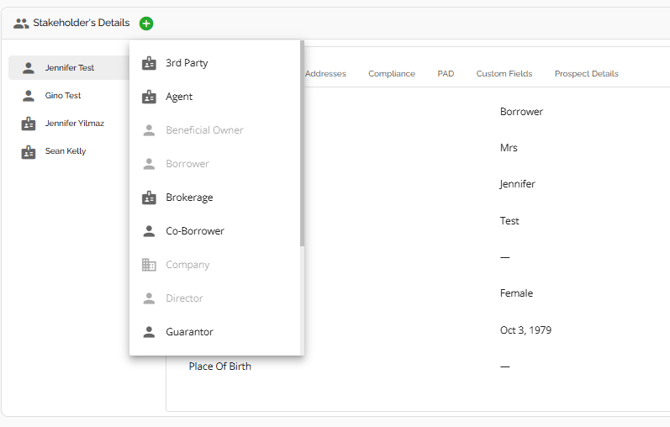
2. From the dropdown menu, choose the type of stakeholder you wish to add to the application.
Note: The drop down options of Beneficial Owner, Borrower, Company, Director, & Signing Officer are grayed out. The reason for this is that they act as a primary borrower. You can only have 1 primary borrower on the deal so you cannot add another primary borrower. However, you can change your customer type from Borrower to Company if you are changing the deal from a personal deal to a company deal.
We have included a "Beneficial Owner" Customer Type. When dealing with a company, lenders also need to capture the beneficial owner of the company. This is similar to a director and has the same attributes and tabs as the "Director" customer type.
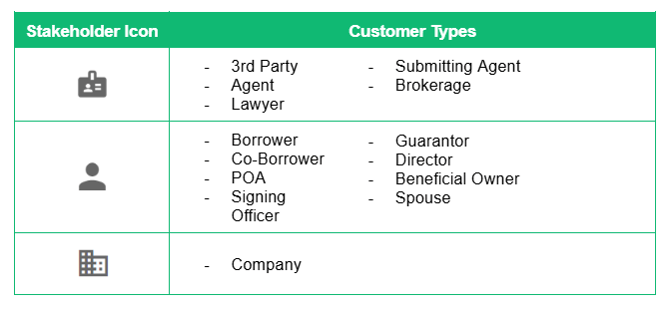
Each type of Stakeholder has its own independent drop down menu of fields to be entered. The following table presents the Stakeholders in the same order as they consistently appear in the Stakeholder's Details Widget list:
Note: When it comes to the stakeholder list, either Borrower or Company will always be at the top as the Primary Borrower.
|
Icon |
Customer Type |
‘Add Stakeholder’ Popup |
|
|
Borrower
Company |
|
|
|
Co-Borrower |
|
|
|
Director |
|
|
|
Beneficial Owner |
|
|
|
Guarantor |
|
|
|
POA |
|
|
|
Signing Officer |
|
|
|
3rd Party |
|
|
|
Agent |
|
|
|
Lawyer |
|
|
|
Submitting Agent |
|
|
|
Brokerage |
|


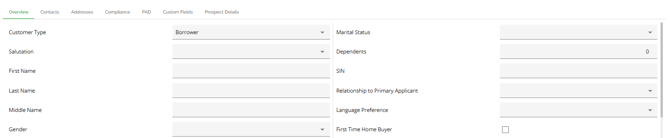
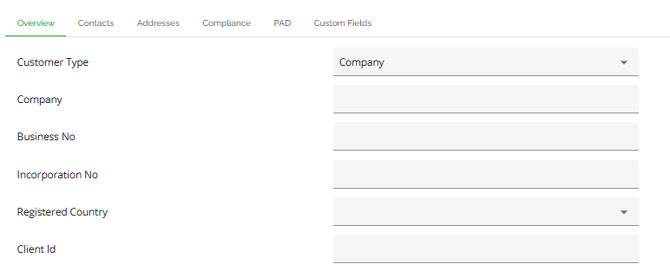

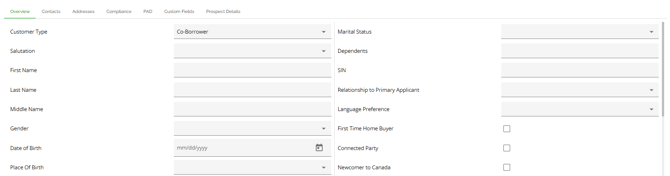
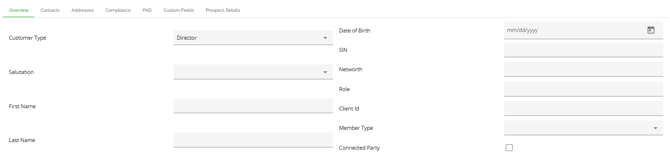
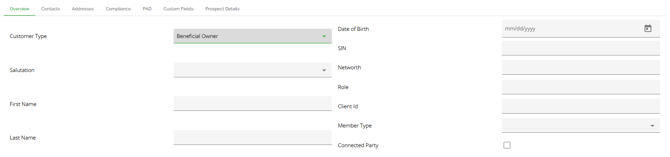
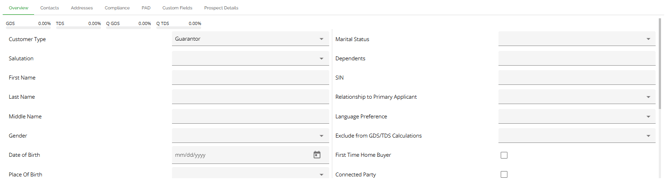
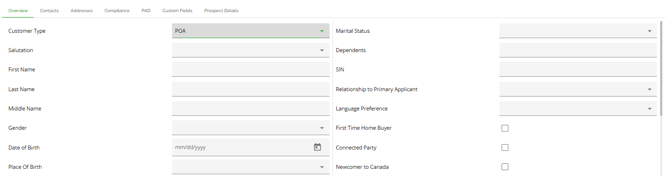


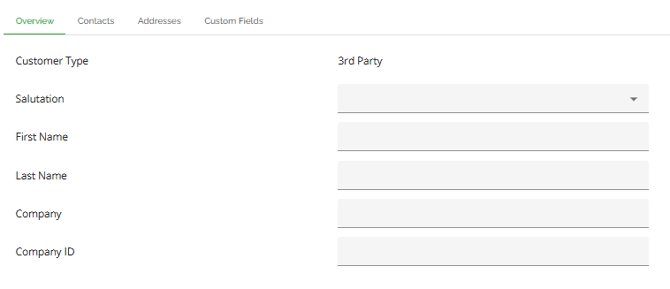
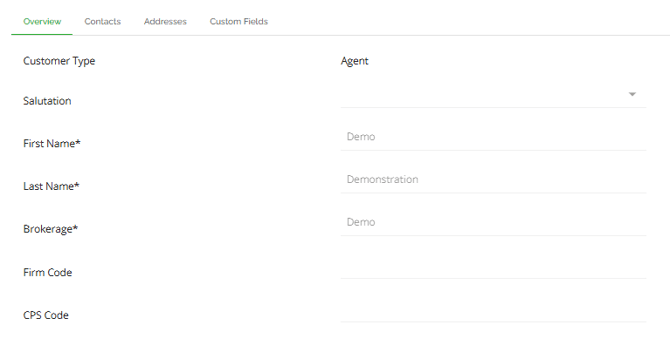
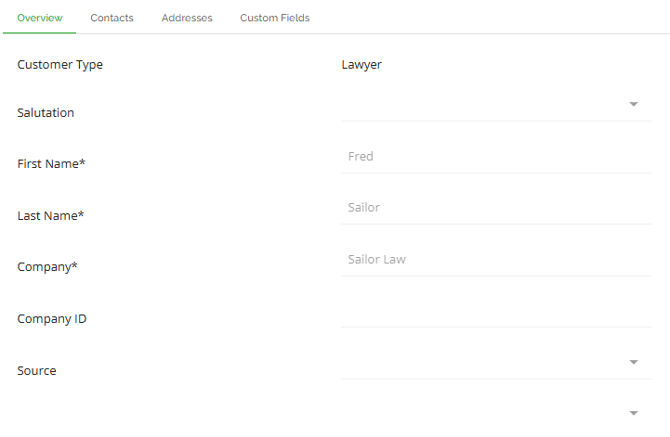
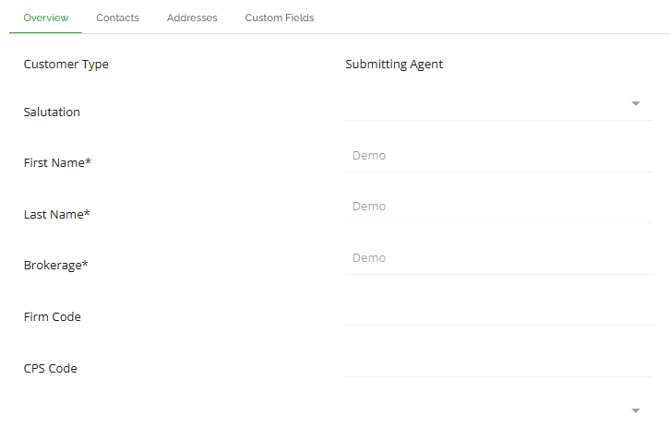
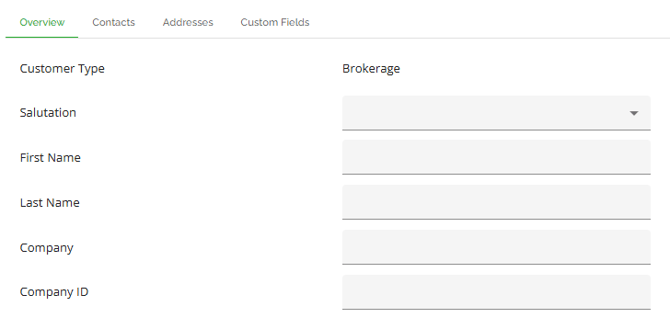
Fill in all the necessary information for the stakeholder you are adding and click on the "Create Stakeholder" button once you are done. This will add the stakeholder to the application and they will appear in the Stakeholder list.
Note: All phone number fields require an area code.
Note: The Stakeholder widget list will include both the Submitting Broker and any additional agents added to the deal. However, only the agents will be displayed in the 'Team' list on the left-hand sidebar.
‘Stakeholder’s Details’ Widget Tabs
‘Overview’ Tab
Fields in this tab will populate automatically with relevant information from the POS systems. Particular to Brokers and Lawyers it will populate with data from the Manager Portal if the Broker or Lawyer is matched in the system. Data in this tab can be manually added or updated as needed with the exception of Brokers or Lawyers.
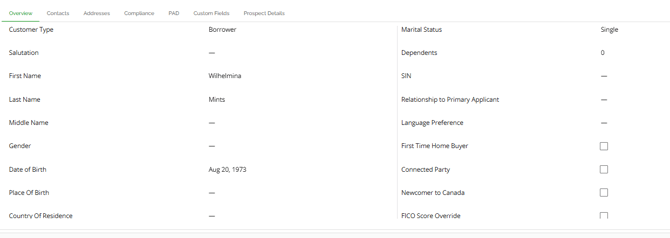
The 'Overview' tab houses all the basic details about a given stakeholder. It aligns with the fields available when adding a new stakeholder to an application. As a result, certain types of stakeholders may have fewer or unique fields in their 'Overview' tab.
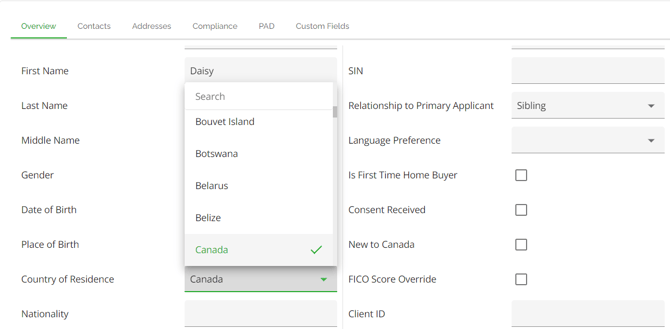
To enhance the user experience, we have incorporated search functions for fields that contain a large number of options in the dropdown menu. This feature eliminates the need for users to manually scroll through the entire list to find the desired option. Instead, users can simply start typing in the search field and the list will automatically update with relevant matches as they type. An example of such a field is the "Country of Residence" field.
Client ID
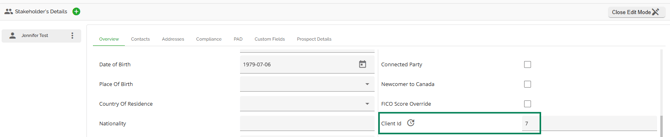
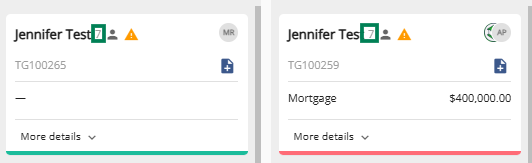
The 'Client ID' field allows users to assign unique IDs to borrowers that can be used to match them in the future. When a new deal or applicant is added to the system, it will search for existing applicants with the same first name, last name, middle name (if applicable), and date of birth. If a match is found, the client ID from the matched applicant will be assigned to the new applicant. If no match is found, a new unique ID will be generated.
If there are multiple matches based on these criteria, the system will attempt to determine a match using phone numbers, email addresses, and SIN (Social Insurance Number). If there are still multiple matches, the system will use the client ID of the latest created applicant. Additionally, users have the option to generate a new unique client ID in cases where the system detects two individuals with the same name and date of birth.
Once a match is found, the client ID will be displayed in the 'Overview' tab of the Stakeholder widget.
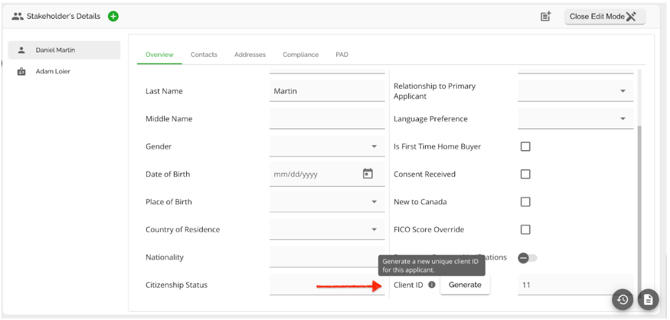
The generation of client IDs and matching applicants based on these IDs is a feature that can be toggled in the ‘Settings’ section of the Manager Portal. Currently, we only offer numeric IDs..
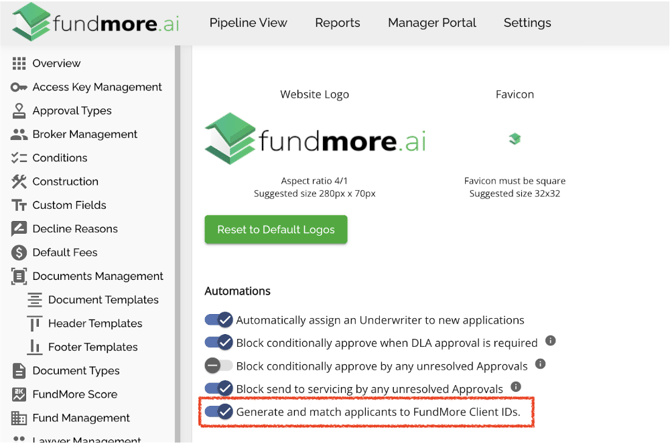
Note: For lenders that assign the client ID outside the FundMore system, we have also exposed a new WebHook wherein we can send the payload for both the old and new client ID.
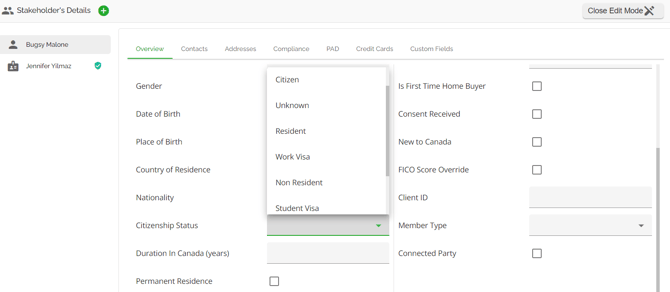
Citizenship Status
The ‘Overview’ tab also includes a Citizenship status field. The options for this field can be configured by Admin Users in the Custom Fields section of the Manager Portal.
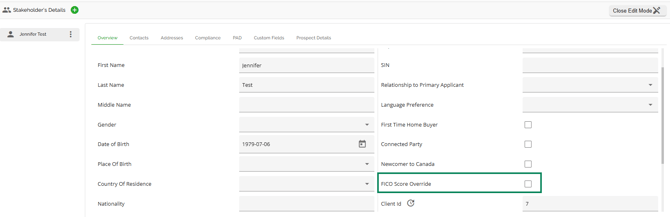
FICO Score Override
By default, the system uses the FICO score of the applicant with the highest income to determine eligibility and pricing. However, if you prefer to use another FICO score regardless of income, you can enable the FICO Score Override option within the Stakeholder widget.
Using the FICO Score Override
- To activate this feature, check the FICO Score Override box for a specific stakeholder.
- When enabled, the system will consider the FICO score of the stakeholder in question instead of the one determined by the highest income, ensuring the best eligible score is used in pricing assessments.
Example
Suppose an application has two applicants:
- Applicant A (Borrower with highest income) with a FICO score of 657
- Applicant B (co-borrower) with a FICO score of 869
Suppose the product requires a minimum FICO score of 680. On Applicant A’s score of 657 — the default, because A is the higher earner — the application would not qualify. By enabling FICO Score Override for Applicant B in the Stakeholder’s Details widget, the system instead considers Applicant B’s score of 869, and the application now meets the product’s credit requirement.
This feature provides flexibility in meeting product criteria, particularly when the borrower with the highest income FICO score falls below the required threshold but another applicant’s higher score could qualify the application for the product.
Consent Fields
In the Stakeholder widget, under the Overview tab, two new fields have been added:
- Consent Date (date type, only in the past/current date)
- Consent Received By (free text)
These fields appear beneath the Consent Received checkbox and can only be edited when the checkbox is selected. If consent has not been received, the two fields remain disabled and are automatically cleared.
The fields are manageable from Custom Fields.
Users can add this information manually in the Overview tab in the Stakeholder widget for each applicant.
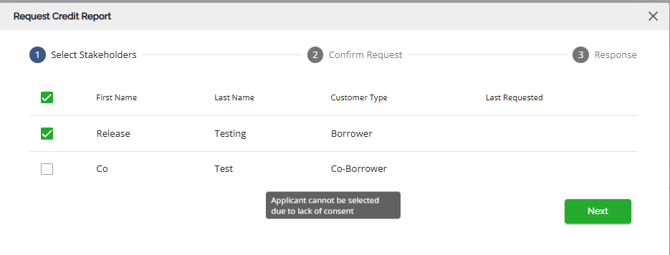
A consent is required for pulling a CB. If the Consent Received checkbox is not checked, the user is blocked from proceeding with the request for that particular applicant.
Users require the permission to update applications in order to update consent information.
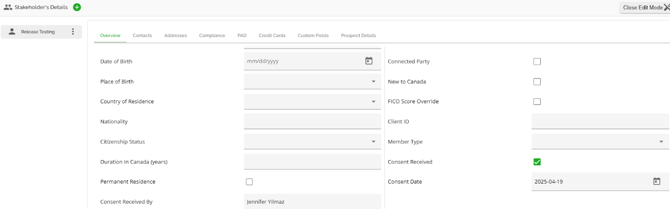
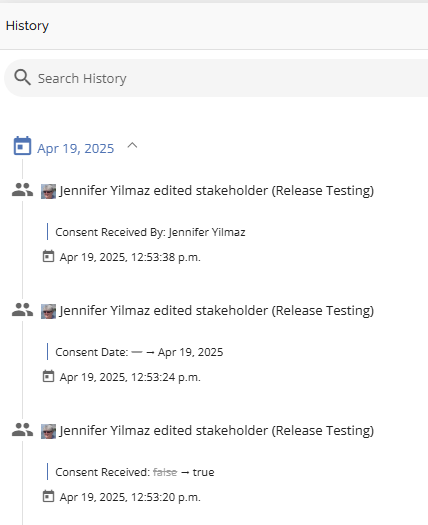
When the user completes the consent fields, a history log will capture and record these updates.
If Consent details are not completed:
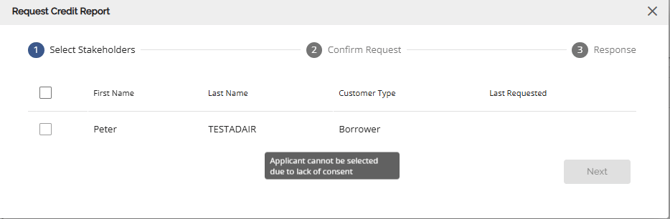
When Consent Details are completed:
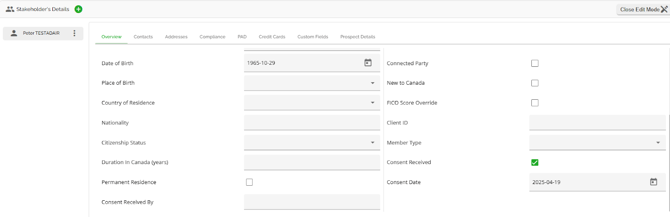
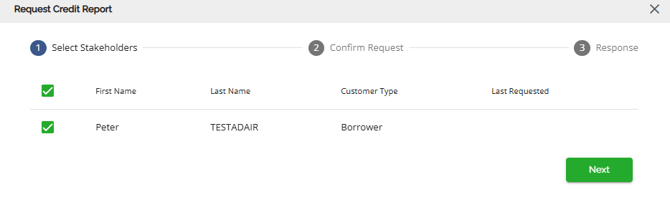
All data entry for these fields are tracked in Application history:
If there are multiple applicants on the file and the user chooses the select all option when requesting credit, the system will be able to identify which users have the appropriate consent data input and which applicants do not. It will then only allow credit to be pulled on the applicant that has the consent data input.
‘Contacts’ Tab
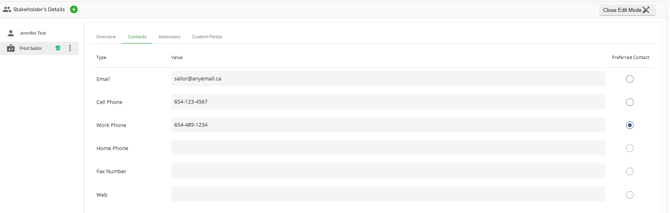
In the 'Contacts' tab, you will find all the contact information for the stakeholder in the context of the application. Fields in this tab will populate automatically with relevant information from the POS systems. This includes 3rd parties such as brokers and lawyers. Users can also manually add or update data as needed. You can easily choose the stakeholder's preferred method of contact by selecting the radio button next to each field (only one method can be selected at a time).
Note: All phone number fields require an area code. For numbers requiring an extension, the system supports extensions for work phone numbers.
With respect to Brokers and Lawyers, data in here may not match what is in the Overview tab. This is due to the fact that the Overview tab pulls from Broker/Lawyer Management and the Contacts tab is data from the POS and specific to this application only.
‘Addresses’ Tab
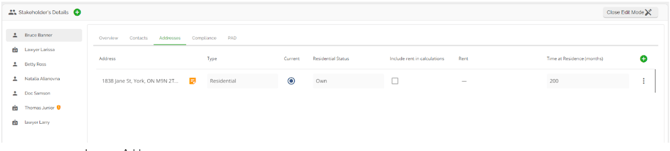
The ‘Addresses’ tab houses all the address details for a given stakeholder, including current and previous addresses if applicable. You can identify the Stakeholder’s current address by clicking the radial button in the middle column labeled ‘Current’ (only one address may be selected at a time). The address fields correspond with the fields that are available upon adding a new stakeholder type to an application. This means that certain kinds of stakeholders will have far fewer fields or unique fields in their ‘Addresses’ tab.
Borrower Address:
Lawyer Address:
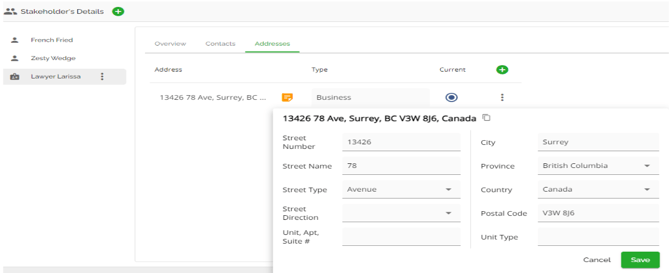
The orange 'Address Details' button utilizes Google integration to simplify the process of searching for addresses and automatically splitting them. For flexibility, users also have the option to manually modify any parts of the address. Please note that the address cannot be edited directly within the pop-up window, as it is populated based on a match with the Google Maps database. However, there is an 'X' button next to the matched address in the address tab, which allows you to remove the address entirely and search again in the Google Maps database. If necessary, you can still update the address details within the details section.
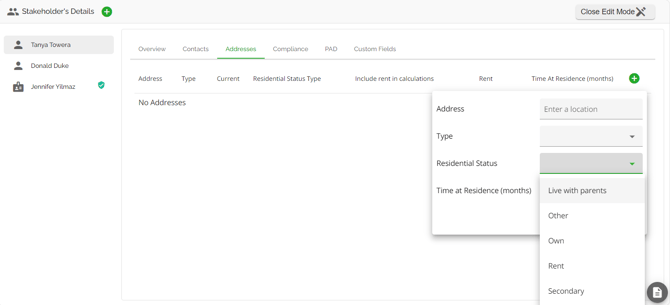
If the applicant is renting, this can be captured by selecting ‘Rent’ in the ‘Residential Status’ and the monthly rent can be entered in the ‘Rent’ field. The ‘Include rent in calculations’ checkbox allows the user to include or exclude the monthly rent as a liability in calculations for TDS as needed. It is important to note that for applications ingested from Finmo, we have modified the mapping to have the “Include Rent in Calculations” checkbox default to false/unchecked.

We have also included the options of "Owner Occupied" and "Rental" to the drop down options when adding an address for the applicants in the Stakeholder widget. It is important to note that selecting these options may impact debt servicing.
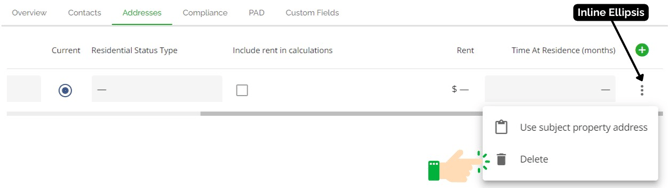
To delete an address, click on the ellipsis icon positioned on the same line as the address you want to remove. This icon is usually located to the far-right of the line. Then, select the "Delete" option from the drop-down menu
‘Compliance’ Tab
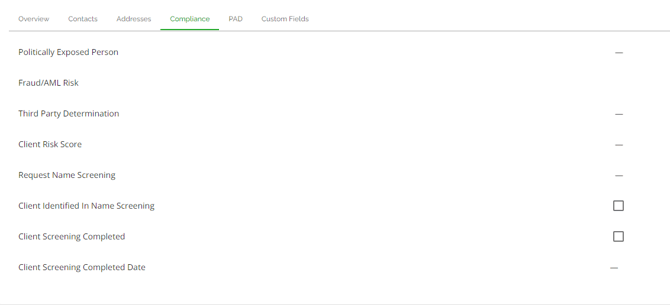
The 'Compliance' tab contains all the information related to a stakeholder's potential risks and the compliance measures taken to assess these risks. This tab was implemented to help lenders manage the compliance requirements for mortgage underwriting. It provides details about PEP and AML, if such information is available for the applicant.
Note: This tab will not populate for any 3rd party stakeholders such as brokers, lawyers, etc.
The following fields and their options are available for each borrower under this section:
- Politically Exposed Person
- Head of an International Organization (HIO)
- Not a PEP
- PEDP & HIO
- PEFP & HIO
- Politically Exposed Domestic Person (PEDP)
- Politically Exposed Foreign Person (PEFP)
- Fraud/AML Risk - Users can select one of these options for each stakeholder (borrowers, co-borrowers, guarantors, or firms). During loan updates from LOS to the banking system, the selected Fraud/AML Risk option will map automatically to the banking system using the Lending domain API, ensuring data consistency.
- Demarketed Client (No New Business Permitted)
- High Risk Client
- No New Business
- SATR Filed
- STR Filed
- Third Party Determination
- No
- Yes
- Client Risk Score (manual input)
- Request Name Screening
- No
- Yes
- Client Identified In Name Screening (manual input except for one organization that populates this through an automated blocklist check via their banking system)
- Client Screening Completed - This field can be set by the user through the interface and represents a flag indicated when an AML/Fraud check has been completed.
- Client Screening Completed Date - This field can only be set programmatically through the API and can be leveraged when integrating with third-party tools to indicate when a screening has been completed.
- Client Last Screening Date - This field can only be set programmatically through the API and can be used to capture the last time a screening was completed.
The value of all option fields can be customized within the Manager Portal.
‘PAD’ Tab
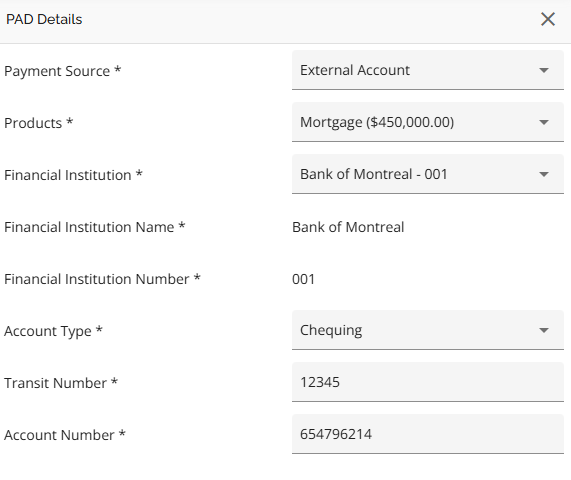
The ‘PAD’ tab stores a stakeholder’s pre-authorized debit details so that they can be relayed through integrations with the different servicing platforms. Additionally if there are multiple products on an application users can set up PADs for each product independently allowing them to pull payments from different bank accounts per product if necessary. The following fields are available within this section and all are required:
- Payment Source - The Payment Source field is hidden unless the relevant paymentSourceFieldsEnabled setting is active. Clients with the applicable setting enabled will have the ability to choose between Lender Account Type or External Account as a payment source. Facilitates the selection of either external or internal banking information when setting up PAD details. With this field, users can indicate if the payment is coming from an external or internal account and depending on the source selected, the PAD set up will differ. If External is selected the usual fields will open up for population. If Internal is selected the fields will differ starting with the Payment Source field. It will indicate the organization’s name. From there the following fields will open up for population: Member Number, Account Type, and Sub Number. The options for Account Type can be managed via Custom Fields in the Manager Portal.
- Products - The system offers users the ability to manage PADs for applications with multiple products. This allows users to link PADs directly to the appropriate requested mortgage, ensuring more precise tracking and association of PADs with specific mortgage requests. It can be particularly useful for deals with multiple products where the borrower is using different bank accounts to make the payments.
- Financial Institution
- Allows the user to select from all financial institutions in Canada. The user can find the desired institution by using either the institution name or number.
- Financial Institution Name - splits out the FI name from the FI selected in the Financial Institution field.
- Financial Institution Number - Splits out the FI number from the FI selected in the Financial Institution field. Minimum Length should be 3. Will automatically populate based on the FI selected.
- Account Type
- Savings
- Chequing
- Transit Number - Minimum Length should be 5. If there is an attempt to enter less than the required minimum the system will indicate an error by showing a red line beneath the entry and the user will not be able to select Add PAD as it will be grayed out.
- Account Number - Minimum Length should be 7. If there is an attempt to enter less than the required minimum the system will indicate an error by showing a red line beneath the entry and the user will not be able to select Add PAD as it will be grayed out.
Depending on the needs of the company, there is an option to block stage transition until the banking information is provided. For example, you can configure the system to ensure the banking information is completed prior to advancing past the Document Review stage. This can be managed by marking the fields as required in the Custom Fields section of the Manager Portal, or by creating a Task to manage the requirement.
Manually add or edit External Financial Institutions
Users can now update the Financial Institution Name and Financial Institution Number fields, which have been separated for better flexibility. Although these two fields are individually locked, editing the main Financial Institution field automatically updates both the Name and Number. This streamlined approach ensures data accuracy and allows users to update three related fields by only modifying one.
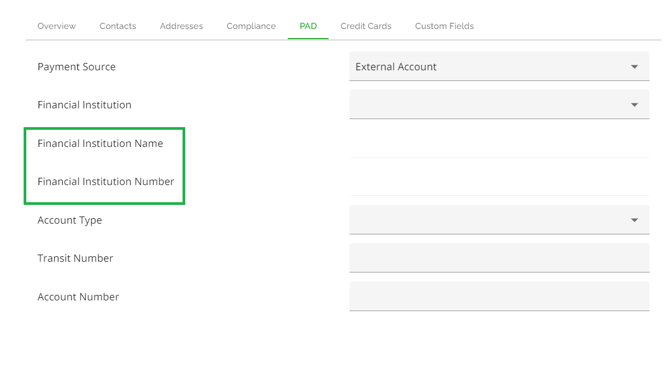
If the borrower provides an institution that is not on the existing list, you can use the option of “Other” in the Financial Institution drop down list to enter a new one.
Note: This action does not add the institution to the master list. It only adds it to the specific application being worked on. The information is also not retained in the database. Contact Client Success if you come across an institution that needs to be added to the master list.

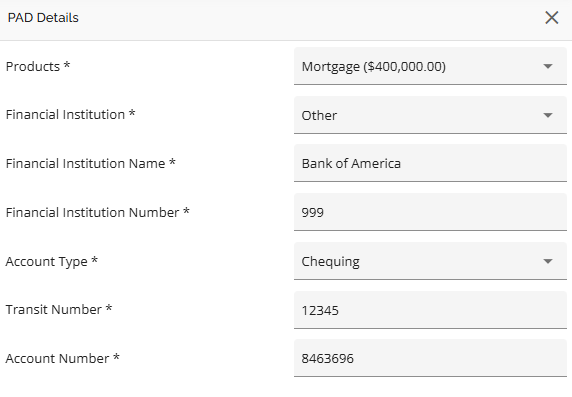
You can also use the same functionality to edit an already existing entry if necessary.
Adding a PAD
To add a PAD, follow these steps:
- Click on the edit pencil
 in the top right corner of the widget to enter edit mode.
 - Click on the ‘Add PAD’ or green plus button.

3. A sidebar will open up. Complete the required fields and select the ‘Add PAD’ button
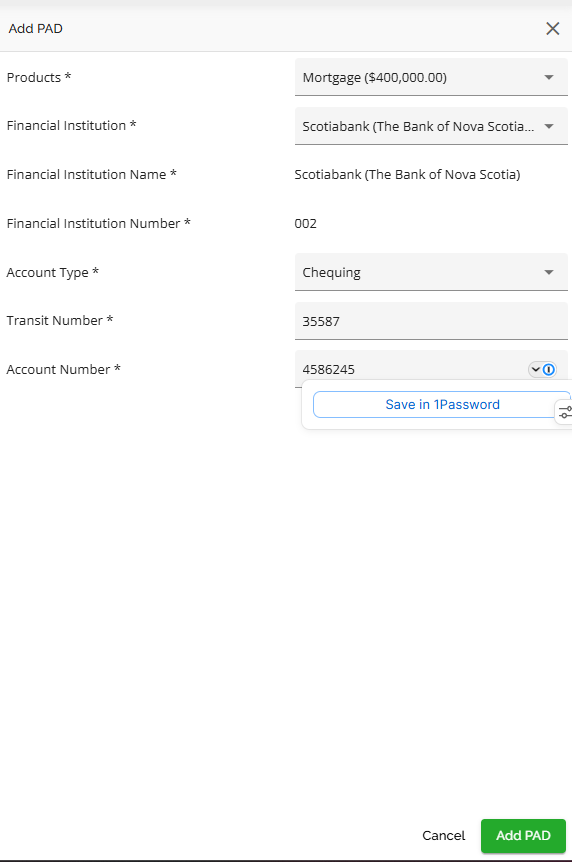
4. A line entry will be created for this PAD entry in the PAD tab of the Stakeholder widget

Create PAD per Requested Product
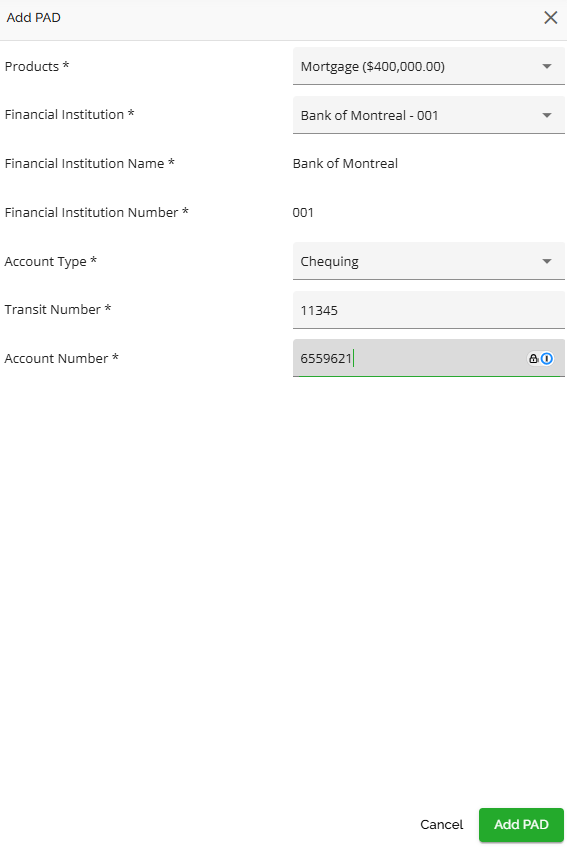
We have added support for managing PADs, allowing users to add/link PADs per requested product. This enhancement ensures more precise tracking and association of PADs with specific mortgage requests. It can be particularly useful for deals with multiple products where the borrower is using different bank accounts to make the payments. To utilize this feature, follow these steps:
- Navigate to the Stakeholder’s Details widget.
- Click the pencil icon in the top-right corner to enter Edit Mode.

- Select the PAD tab
- Click the ADD PAD button (green plus button)

-
- Payment Source: Choose an external account or other source.
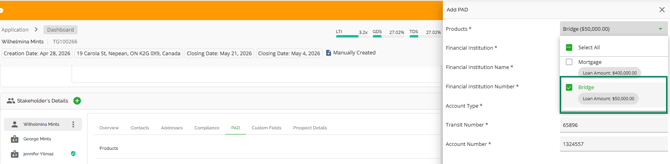
- Product: Select the requested product(s) (the corresponding amount will be displayed). This field supports both single and multiple selections, enabling the use of a single PAD for multiple products if needed.
- Financial Institution: Choose from the list, or select "Other" if not listed.
- Account Information: Enter the required account details (i.e. Financial Institution Name, Financial Institution Number, Account Type*, Transit Number*, Account Number*).
6. Click ADD PAD to finalize
Adding Additional PADs for Other Products
The same process applies when creating PADs for additional products associated with the same or a different mortgage request:
- Repeat steps 1-4 above.
- For the Product field, select the additional product you wish to associate with the PAD. The corresponding amount for that product will be displayed.
3. Enter the payment details:
- Payment Source: Choose an external account or other source if applicable.
- Product: Select the requested product(s) (the corresponding amount will be displayed). This field supports both single and multiple selections, enabling the use of a single PAD for multiple products if needed.
- Financial Institution: Choose from the list, or select "Other" if not listed.
- Account Information: Enter the required account details (i.e. Financial Institution Name, Financial Institution Number, Account Type*, Transit Number*, Account Number*).
4. Click Add PAD to save the additional PAD.
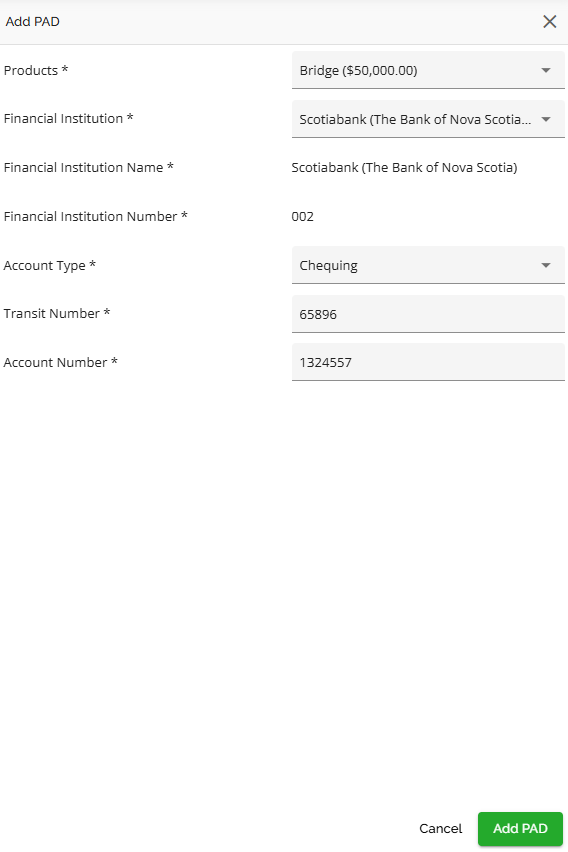
The PAD entries and their associated products will populate the PAD tab in the Stakeholder’s Details widget.

Editing an existing PAD
To edit the details for a PAD entry, follow these steps:
- Click on the edit pencil
 in the top right corner of the widget to enter edit mode.
 - Hover to the right of Product (e.g. Mortgage $400,000) in the example below.
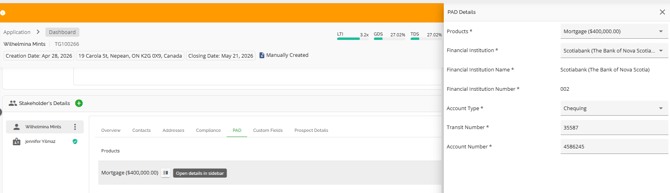
4. Update the appropriate fields.
The system automatically saves any edits.
Deleting a PAD
To delete a PAD entry, follow these steps:
- Click on the edit pencil
 in the top right corner of the widget to enter edit mode.
 - Click on the ellipsis to the right of the PAD entry.
- Select the Delete option.
 The entry will be removed from the system.
‘Custom Fields ’ Tab
The Custom Fields tab holds all the fields created within the Stakeholder Entity in the Custom Fields section of the Manager Portal. These fields are created by your System Administrators or Managers as per the needs of your company.
Note: We do not map custom fields due to their dynamic nature. These fields can be created, changed, and deleted at any time so we cannot count on them to be reliable inputs for mappings in general.
Custom Fields are displayed alphabetically in ascending order, making it easier to identify the position of a specific field within the list.
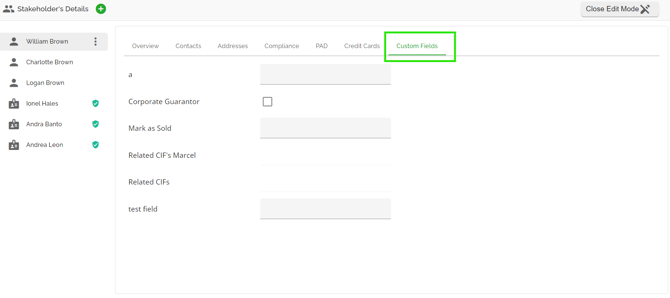
Edit the Custom Fields Tab - To edit fields in the Custom Fields tab, follow these steps:
- Click on the edit pencil
 in the top right corner of the widget to enter edit mode.
 - Click on the Custom Fields tab.
- Locate the field you would like to update.
- Click on the field and edit it.
- When you done editing, click the Close Edit Mode
 button at the top right corner of the widget.
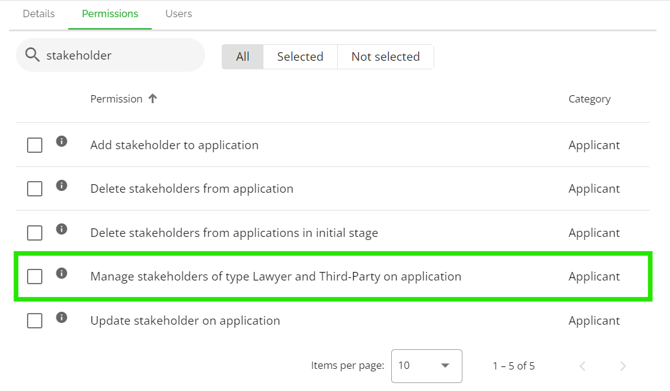
Note: There is a user permission in Role Management called "Manage stakeholders of type Lawyer and Third-Party on application".
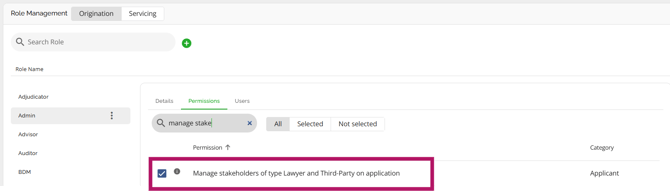
if a user does not have this permission, the entire Lawyer/Third-Party stakeholder view is read-only (all fields).
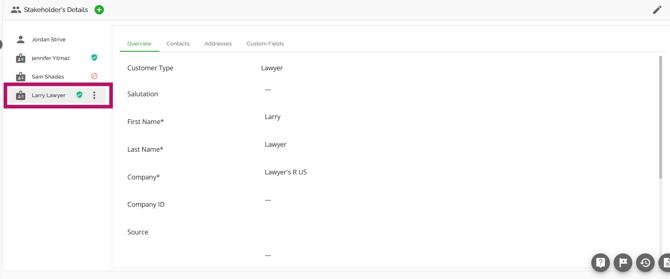
This only covers Lawyer and Third-Party. Other stakeholder types (Broker, etc.) have their own separate permissions, so access needs to be reviewed per type when setting up roles
‘Prospect Details’ Tab
We have added a new tab in the Stakeholder widget called Prospect Details that contains fields around identification and tax information. Note: This tab is lender specific and while it is visible in all environments it may or may not be applicable to all. Lenders can use if they so choose, otherwise, please disregard if it does not apply to you.
The new fields will be added only if the stakeholder type is one of the following:
- Beneficial Owner
- Borrower
- Co-Borrower
- Director
- Guarantor
- POA
- Signing Officer
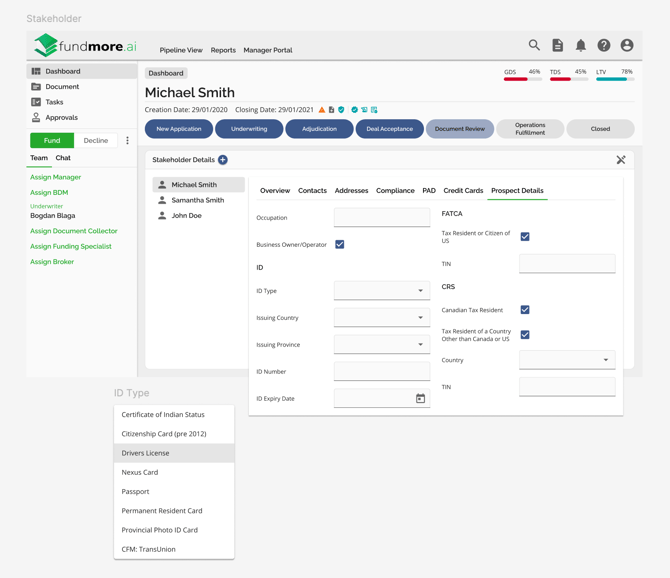
Field Requirements:
Occupation = 4 digits numeric field
Business Owner/Operator = Yes or No
ID Type = Single-select dropdown field with the following options:
- Certificate of Indian Status
- Citizenship Card (pre 2012)
- Drivers License
- Nexus Card
- Passport
- Permanent Resident Card
- Provincial Photo ID Card
- CFM: TransUnion
Issuing Country = Drop down field with a list of country options. Uses the same components as the Country of Residence field.
Issuing Province = If the issuing country is Canada or the United States:
- Dropdown field with a list of province/state options
If the issuing country is Canada or the United States use the same component as the Province/State field in the Address Details popover.
If the issuing country is NOT Canada or the United States:
- Free-text field for manual entry
ID Number = Numeric field
ID Expiry Date = Date field
Tax Resident or Citizen of US = Yes or No
TIN (FACTA) = Text field. Field is disabled by default. Enable it if Tax Resident or Citizen of US = Yes
Canadian Tax Resident = Yes or No
Tax Resident of a Country other than Canada or US = Yes or No
Country = Drop down field with a list of countries
TIN (CRS) = Text field. Field is disabled by default. Enable it if Tax Resident or Citizen of US = Yes
Politically exposed, third party determination and High risk would be completed by our POS (MCU) if they were a prospect. Our POS (MCU) also completes the Prospect details tab.
Editing a Stakeholder’s Details
To edit a Stakeholder's details, follow these steps:
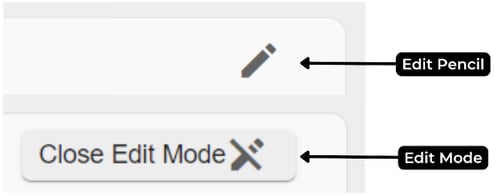
1. Select the edit pencil on the top right hand corner of the widget to switch to edit mode.
2. Select the stakeholder you wish to edit from the stakeholder's list on the left.
3. From the top menu bar, click the tab that houses the information you want to change.
4. Find the field you would like to update and adjust as needed.
5. Once you are done editing, go to the top right corner of the widget and click the ‘Close Edit Mode’ button.
Reassigning a Customer Type
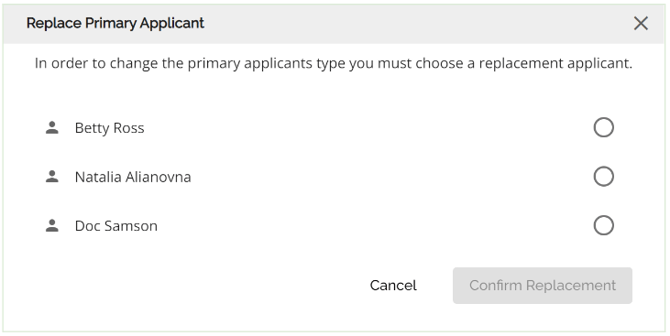
To provide lenders with the necessary flexibility to make adjustments to the deal and accurately reflect reality, we have included the option to change customer types and reassign the primary applicant on the file. The system will always require a primary applicant (Borrower) so when you are trying to change an existing primary applicant to some other type, users will be prompted to select a new primary applicant first.
The system prevents deletion of the primary borrower, ensuring that each application always has at least one applicant of type Customer or Company.
Within the applicant’s ‘Overview’ tab, select the new Customer Type that you would like to reassign.
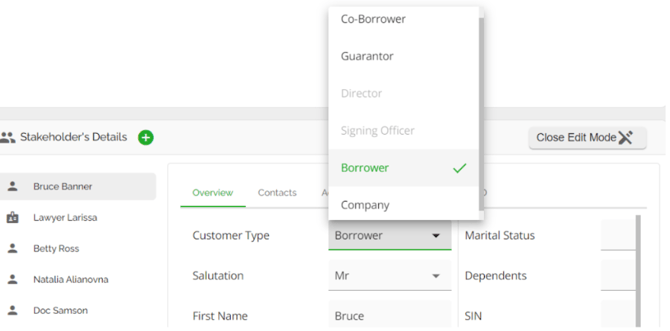
When changing the type for co-applicants or guarantors, you can simply select the desired type from the drop-down list and assign it to the applicant.
If you need to change the primary applicant (Borrower), a pop-up will appear where you can select a new borrower from the list of other applicants on the file. Simply choose the appropriate stakeholder by selecting the corresponding radial button and click the ‘Confirm Replacement’ button to assign the new primary applicant.
It is recommended to begin with the primary applicant (Borrower) when changing the applicant type. This ensures a smooth transition and accurate reflection of the changes in the application.
For lenders that are using our FundMore DM solution (not to be confused with FundMore IQ = broker portal), the ability to reassign a primary applicant is only available before a document request is issued.
Users also have the ability to remove any selected option from the Stakeholders widget. With the exception of the customer type, all dropdown menus can now be easily cleared. For instance, if the primary applicant is changed, the relationship to the primary applicant can be cleared from a stakeholder.
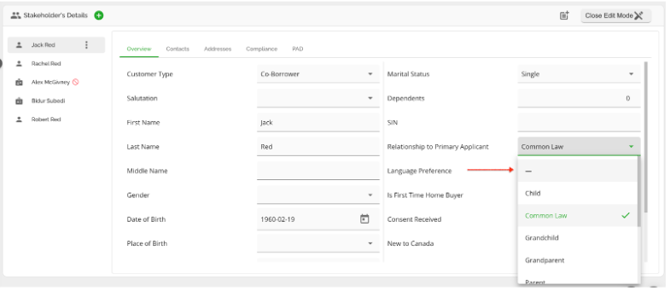
This feature is especially useful when you need to change the Customer Type for your existing Stakeholders. It allows you to update the Relationship to Primary Applicant at the same time, making it convenient and efficient.
To see a demonstration, click here to watch a quick video.
Deleting a Stakeholder
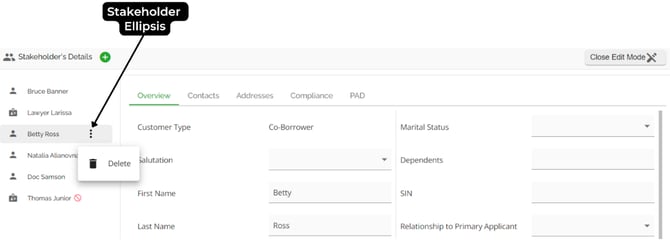
To delete a stakeholder, follow these steps:
- Hover over the stakeholder’s name or click on the stakeholder.
- This will reveal an ellipsis to the right of the stakeholder’s name,
- Click on the ellipsis and select the 'Delete' option. This will remove the stakeholder from the list.
Note: The primary applicant cannot be deleted from the stakeholder section.
Note: The delete option for stakeholders will only be visible if a user has both the delete stakeholder permissions or, where applicable, the Lawyer and Third-Party management permission (discussed below). Users without these permissions will not see the delete button next to stakeholder names, improving control and reducing the risk of unintended deletions.
Brokers, Lawyers and Third-Party Stakeholders
To manage Lawyer and Third-Party stakeholders in the Stakeholder Details Widget, users must have the Manage Stakeholders of Type Lawyer and Third-Party on Application permission. With this permission, users can add, edit, and delete lawyers and third-party stakeholders, ensuring focused control over specific categories without affecting other stakeholder types. Users without this permission cannot add lawyers or third-parties in the Stakeholder widget, even if they have the ‘Update stakeholder on application’ permission to add and manage other stakeholders. To use this permission effectively, the role must also have the ‘Update stakeholder on application’ permissions enabled. Refer to this video demonstration for a better understanding: Stakeholder-Permissions-Demo.mp4
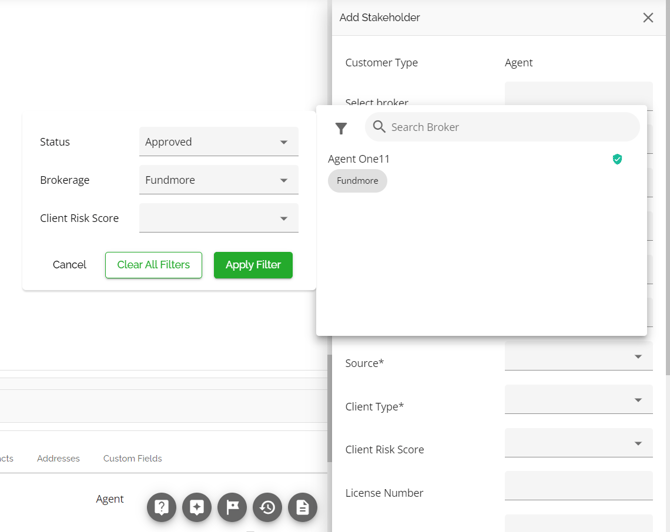
Users have the option to select a broker or lawyer from the list of existing brokers and lawyers in the system. Only verified brokers and lawyers will populate the list, including both approved and blocked brokers and lawyers. However, only approved brokers and lawyers can be selected, while blocked brokers and lawyers will appear grayed out and cannot be selected. Unverified brokers and lawyers will not populate the list.
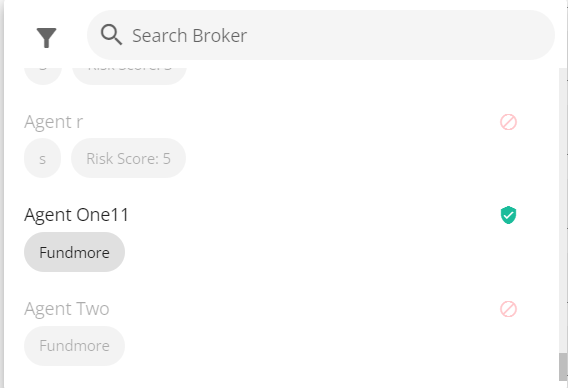
To streamline broker and lawyer selection, users can filter the list by Status (e.g., Approved), Brokerage (brokers) or Company (lawyers) (e.g., FundMore), and Client Risk Score.
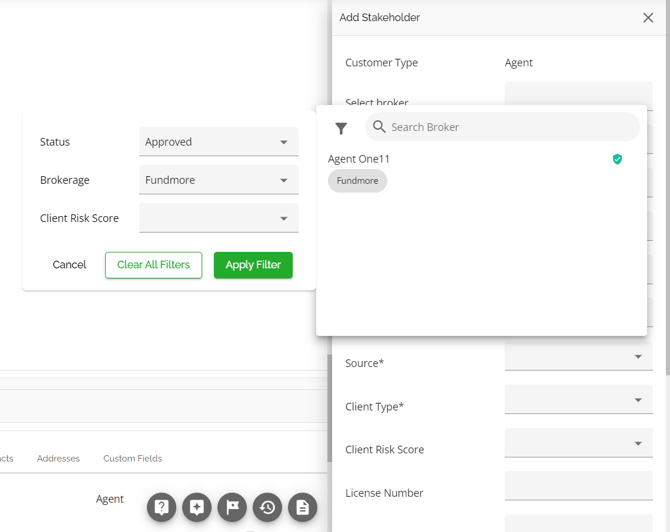
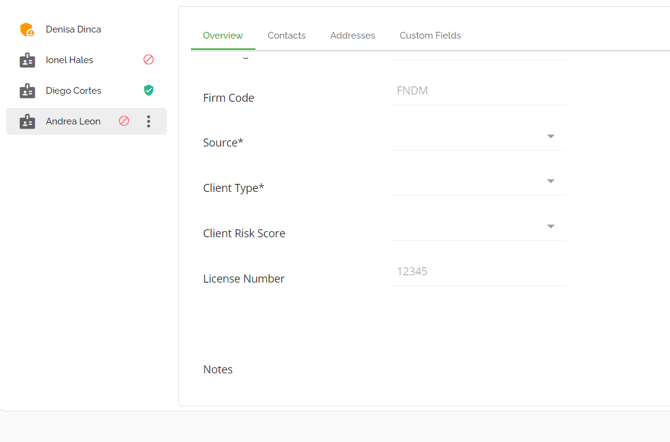
Once a broker or lawyer is added to the deal, their information will be displayed in the Stakeholder’s Details widget, including the broker’s license number in the case of a broker addition.
Refer to this video demonstration for a better understanding:
Lawyer-Management-Updates-August 6th.mp4
Adding a New Broker at the Application Level
The Broker Management functionality includes the ability to automatically add a broker to the Manager Portal when a new broker is created within a deal. This streamlines the process of managing brokers and ensures that brokers, even those added at the application level, are accurately tracked within the system.
When a new broker is added at the application level, they are automatically added to the Unverified tab in the Broker Management section of the Manager Portal. The user with appropriate permissions can then navigate to this section to approve and verify the broker. Once the broker is verified and approved, their status is updated in the deal, reflecting their new verified and approved status.
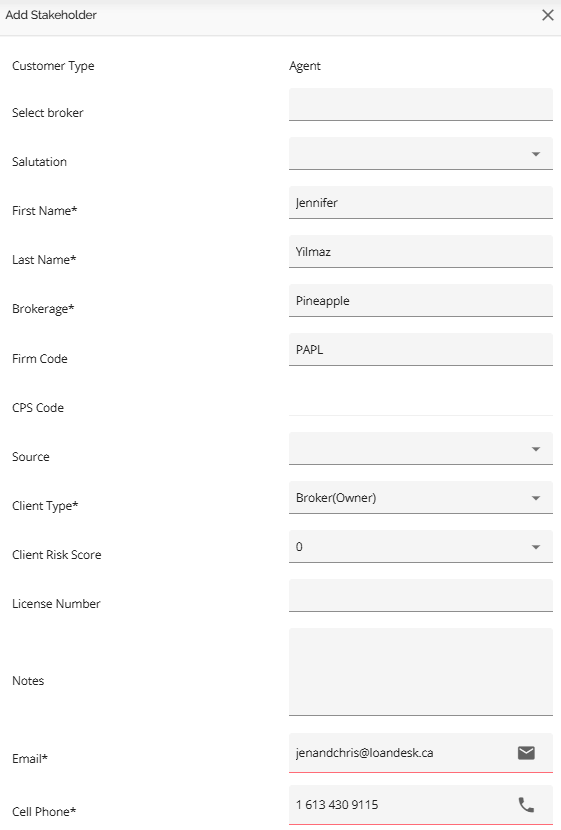
Note: When adding a broker, the system currently does not notify users if the broker is already in the system. If the details entered exactly match an existing broker's record in the Manager Portal, the system will return an error (see below). However, slight variations in details, such as a different email address or phone number, will result in a duplicate entry. It is the responsibility of admin-level users to periodically clean up duplicate entries in the system to maintain accurate records.
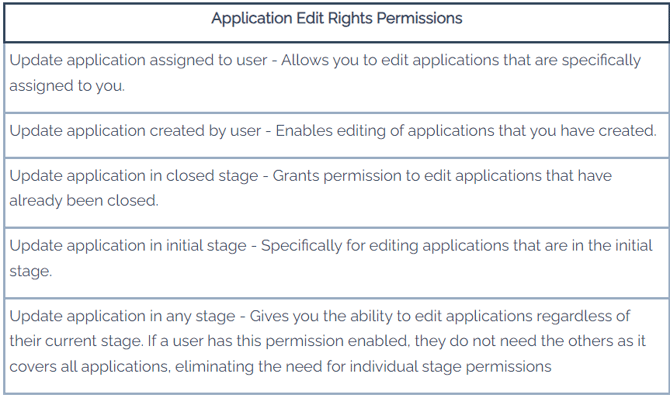
The ability to add a broker to an application is permission-based. Users with the “Add stakeholder to application” permission are able to perform this action.

You should note that for this permission to work, the user needs to have one of the application edit rights permissions enabled. The exact permission needed depends on the scenario and action being performed.
To add a new broker at the application level, follow these steps:
- Navigate to the application from the Pipeline View.
- Go to the Stakeholder’s Details widget (by default, it is the last widget in the Dashboard).
- Click on the Edit icon (
 ) in the top right corner of the widget .
Click on the Add Stakeholder button. This is signified by the green plus button.
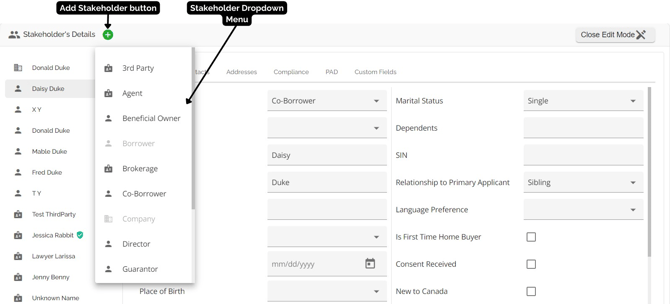
5. From the dropdown menu, choose the Agent type.
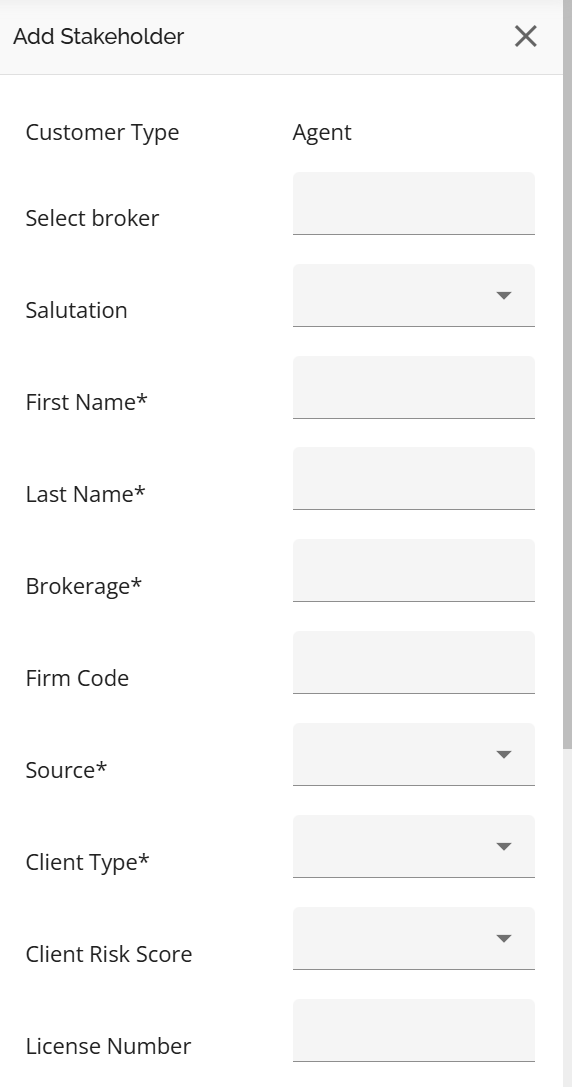
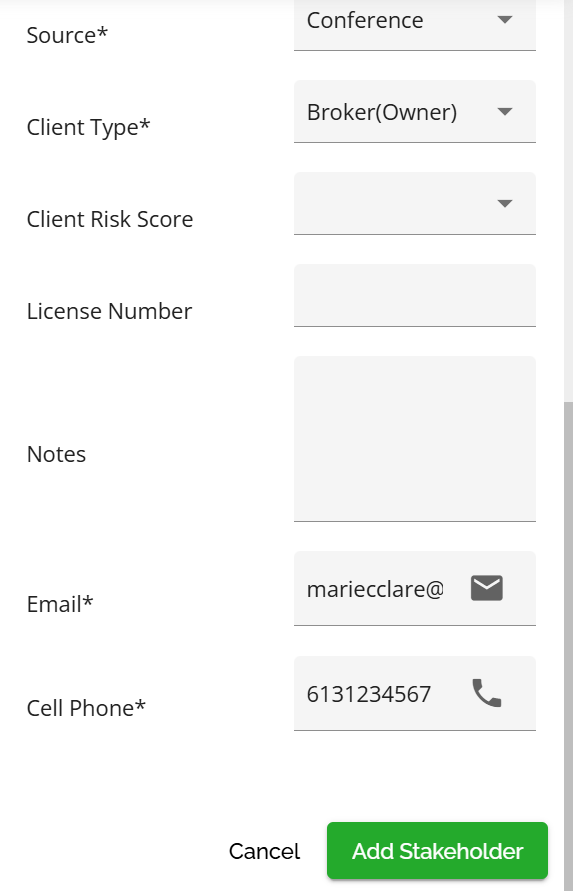
6. Enter the details in the pop-up sidebar starting with Salutation and working your way down the list. Mandatory fields are marked with an asterisk (*).
7. Once completed, click on the Add Stakeholder button.
This feature enhances workflow efficiency by minimizing the need for repetitive data entry. To better understand this functionality, click on this link to watch a video demonstration.
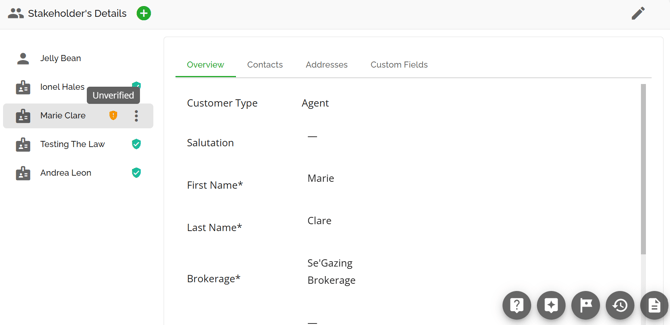
The newly added broker will be flagged by the system as an Unverified Broker. This does not impede progress on the deal. To verify and approve this broker, you can refer to the Verify or Approve a Broker section.
Adding a Lawyer at the Application Level
The Lawyer Management functionality includes the ability to automatically add a lawyer to the Manager Portal when a new lawyer is created within a deal. This streamlines the process of managing lawyers and ensures that lawyers, even those added at the application level, are accurately tracked within the system.
When a new lawyer is added at the application level, they are automatically added to the Unverified tab in the Lawyer Management section of the Manager Portal. The user with appropriate permissions can then navigate to this section to approve and verify the lawyer. Once the lawyer is verified and approved, their status is updated in the deal, reflecting their new verified and approved status.
The ability to add a lawyer to an application is permission-based. Users with the “Manage stakeholders of type Lawyer and Third-Party on application” permission are able to perform this action.

You should note that for this permission to work, the user needs to have one of the application edit rights permissions enabled. The exact permission needed depends on the scenario and action being performed
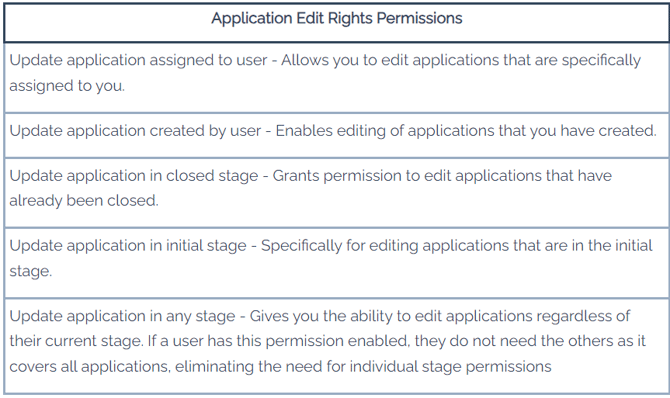
Custom Fields within the Stakeholder widget are outside of this permission and can be edited by anyone unless the field is locked.
To add a new lawyer at the application level, follow these steps:
- Navigate to the application from the Pipeline View.
- Go to the Stakeholder’s Details widget (by default, it is the last widget in the Dashboard).
- Click on the Edit icon (
 ) in the top right corner of the widget .
4. Click on the Add Stakeholder button. This is signified by the green plus button.
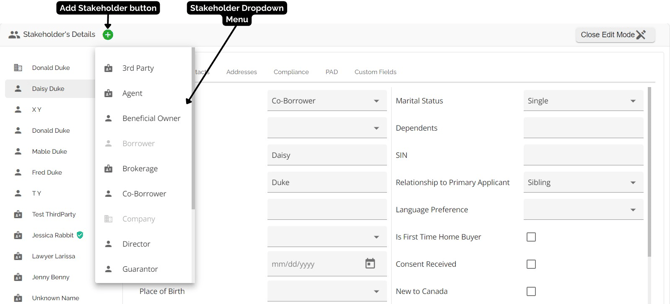
5. From the dropdown menu, choose the Lawyer type.
6. Enter the details in the pop-up sidebar starting with Salutation and working your way down the list. Mandatory fields are marked with an asterisk (*).
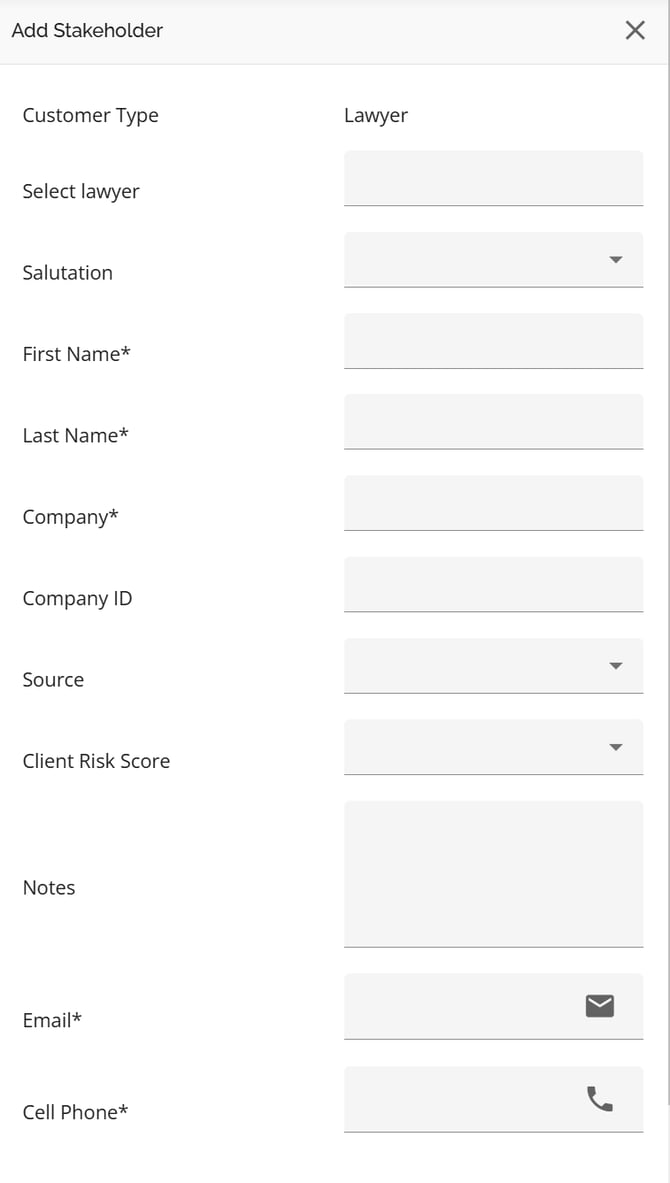
7. Once completed, click on the Add Stakeholder button.
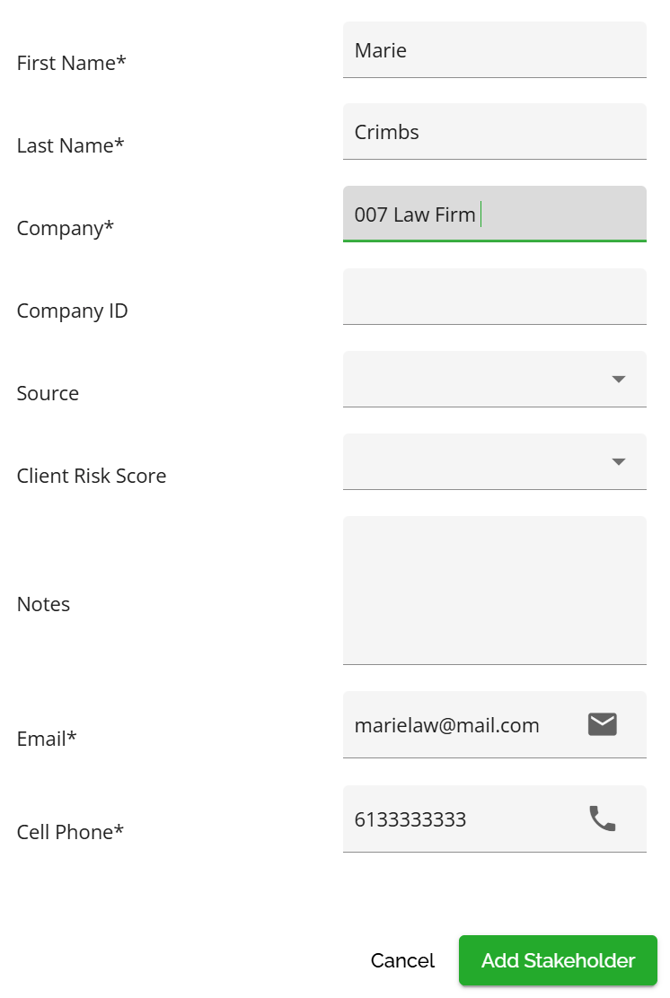
This feature enhances workflow efficiency by minimizing the need for repetitive data entry.
Note: When adding a lawyer, the system currently does not notify users if the lawyer is already in the system. If the details entered exactly match an existing lawyer's record in the Manager Portal, the system will return an error. However, slight variations in details, such as a different email address or phone number, will result in a duplicate entry. It is the responsibility of admin-level users to periodically clean up duplicate entries in the system to maintain accurate records.
The newly added lawyer will be flagged by the system as an Unverified Lawyer. This does not impede progress on the deal. To verify and approve this lawyer, you can refer to the Verify or Approve a Lawyer section.
Broker Management: Implementation at the Application Level Approved Brokers
Approved brokers are brokers that have been verified and validated by the lender. They are marked with a green badge at the application level, which is displayed in both the Team list and the Stakeholder’s Details widget on the application dashboard.
When adding a broker at the application level, users can search and select from a list of existing verified brokers. Only approved brokers are selectable. Blocked brokers will appear grayed out and cannot be selected, while unverified brokers will not appear in the list.
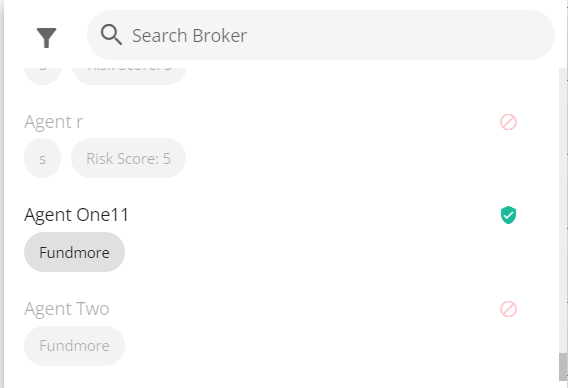
To enhance user experience, we have provided search and filter functionality when selecting a broker. In the example below, we have filtered the list by Status (Approved) and Brokerage (FundMore). In addition to Status and Brokerage , you can filter by Client Risk Score. You can refer to this video for a demonstration of this functionality:
Broker Search and Filter Functionality.
Unverified Brokers
Unverified brokers are those that are added to the system but not yet verified. These brokers are flagged with an orange warning badge in the application’s Team list and Stakeholder’s Details widget.
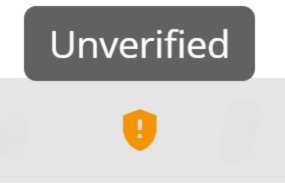
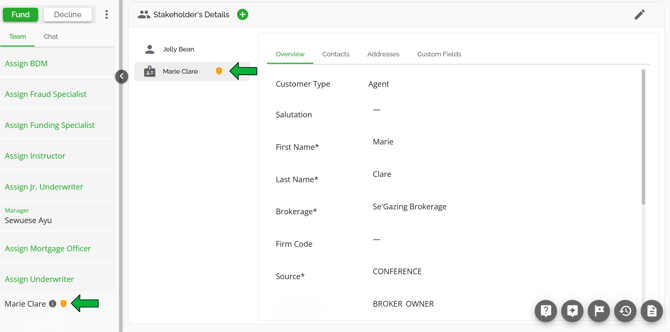
There are two primary scenarios where a broker is flagged as unverified:
- New Brokers Submitting Applications: Brokers who are not yet in the system or do not match brokers in the system can submit applications to lenders via the POS. Once submitted, they are automatically added to the Unverified list in the Broker Management section. They will be flagged as unverified in the application and the unverified list counter in the Manager Portal will be updated.
- Adding a New Broker at the Application Level: When a broker who is not yet in the system is added at the application level, they will be placed in the Unverified tab within the Broker Management section. The process of adding a new broker within the deal is detailed in the Adding a Broker at the Application Level section. Users with the appropriate permissions can verify and approve these brokers, which will update their status to verified and approved within the application.
Note: If the same broker is added with different details (such as a different name, phone number, or email), the system will flag this as a duplicate entry. It is the responsibility of admin-level users to periodically clean up duplicate entries in the system to maintain accurate records.
Unverified brokers can appear as stakeholders in your application. While there are no hard stops preventing the deal from progressing through the pipeline, it is recommended that lenders set up tasks in the system to ensure broker statuses are reviewed before approving the application.
Blocked Brokers
A broker marked as blocked in the Broker Management system cannot be added as a stakeholder to an application. However, previously approved brokers can have their status changed to blocked for various reasons. If such brokers are already associated with a deal, they will not be automatically removed. Instead, the system flags them as blocked by displaying a red warning icon next to their name in the application’s Team list and in the Stakeholder’s Details widget.
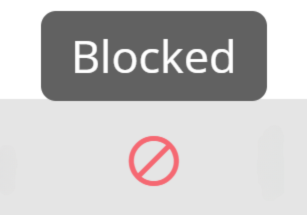
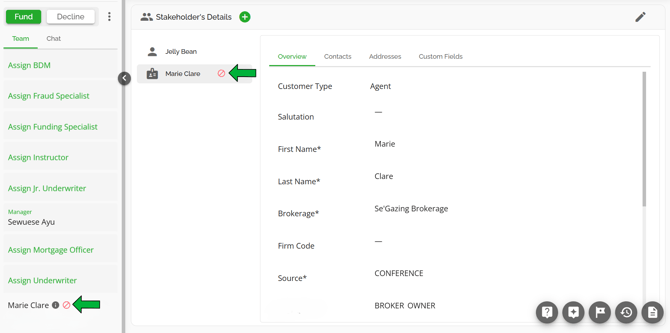
Note: When a broker with a blocked status is associated with a deal, there are no restrictions that prevent the application from moving through the pipeline. Lenders are advised to set up tasks within the system to regularly check broker statuses before deal approval, proceeding based on internal guidelines.
Lawyer Management: Implementation at the Application Level Approved Lawyers
Approved lawyers are lawyers that have been verified and validated by the lender. They are marked with a green badge at the application level, which is displayed in the Stakeholder’s Details widget within the application dashboard.
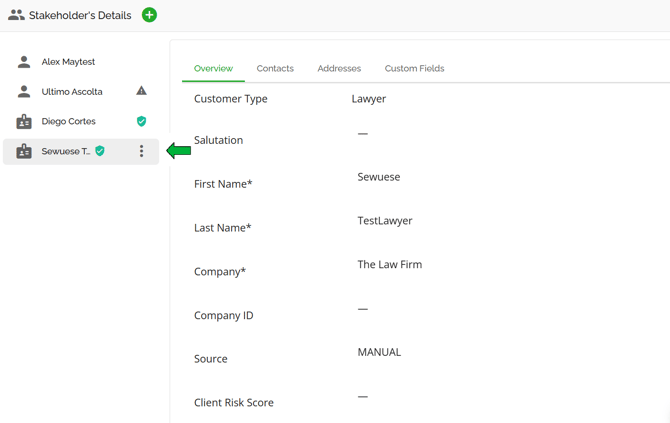
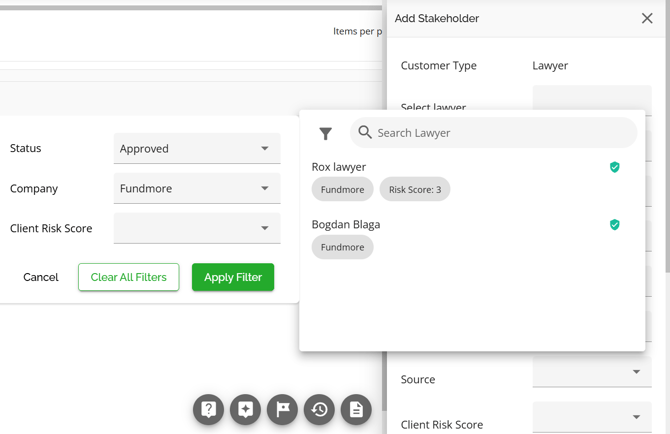
When adding a lawyer at the application level, users can search and select from a list of existing verified lawyers. Only approved lawyers are selectable. Blocked lawyers will appear grayed out and cannot be selected, while unverified lawyers will not appear in the list.
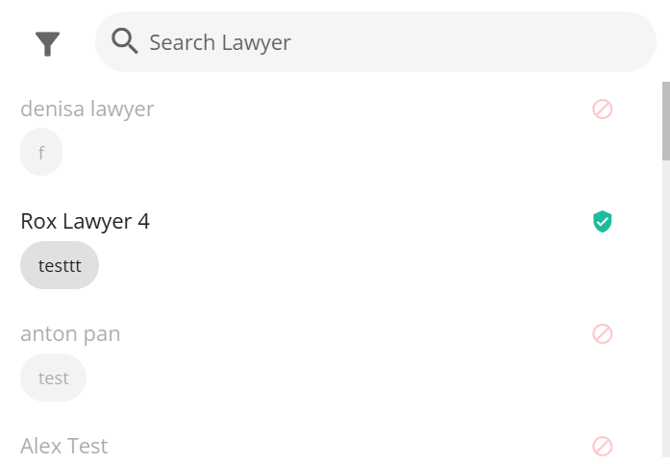
To enhance user experience, we have provided search and filter functionality when selecting a lawyer. In the example below, we have filtered the list by Status (Approved) and Company (FundMore). In addition to Status and Company, you can filter by Client Risk Score.
Unverified Lawyers
Unverified lawyers are those either not yet added to the system or added but not yet verified. These lawyers are flagged with an orange warning badge in the Stakeholder’s Details widget.
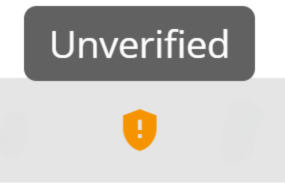
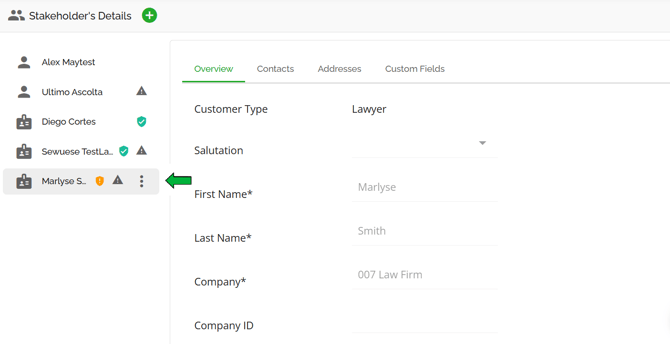
When a lawyer who is not yet in the system is added at the application level, they will be placed in the Unverified tab within the Lawyer Management section. The process of adding a new lawyer within the deal is detailed in the Adding a Lawyer at the Application Level section. Users with the appropriate permissions can verify and approve these lawyers, which will update their status to verified and approved within the application.
Note: If the same lawyer is added with different details (such as a different name, phone number, or email), the system will flag this as a duplicate entry. It is the responsibility of admin-level users to periodically clean up duplicate entries in the system to maintain accurate records.
Unverified lawyers can appear as stakeholders in your application. While there are no hard stops preventing the deal from progressing through the pipeline, it is recommended that lenders set up tasks in the system to ensure lawyer statuses are reviewed before approving the application.
Blocked Lawyers
A lawyer marked as blocked in the Lawyer Management system cannot be added as a stakeholder to an application. However, previously approved lawyers can have their status changed to blocked for various reasons. If such lawyers are already associated with a deal, they will not be automatically removed. Instead, the system flags them as blocked by displaying a red warning icon next to their name in the Stakeholder’s Details widget.
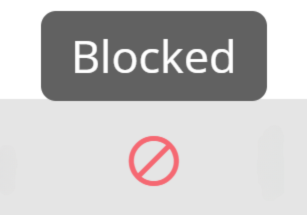
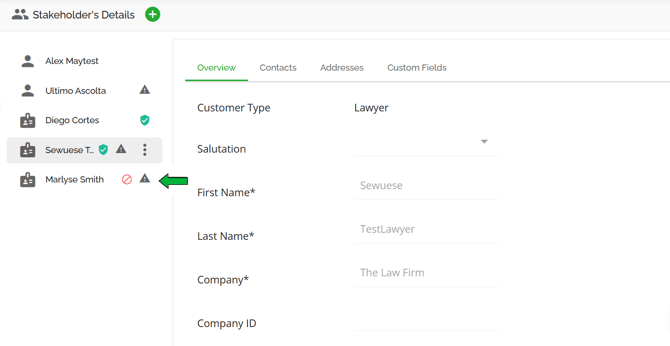
Note: When a lawyer with a blocked status is associated with a deal, there are no restrictions that prevent the application from moving through the pipeline. Lenders are advised to set up tasks within the system to regularly check lawyer statuses before deal approval, proceeding based on internal guidelines.