![Fundmore-Logo.png]](https://help.fundmore.ai/hs-fs/hubfs/Fundmore-Logo.png?height=50&name=Fundmore-Logo.png)
Table Of Contents
Automation Settings (Manager Portal)
How to Create Rules: Technical Requirements
Add condition rule date gating and option to keep disabled conditions
Introduction
Automatic conditions were developed so that conditions would apply automatically on applications at ingestion and on application changes based on some condition level rules set up in Condition Management. Automatic Conditions can also be set to ‘repeat’ meaning they can apply to multiple stakeholders.
The application of automatic conditions reduces human error when applying conditions manually and speeds up the underwriting process.
Automatic document requests only work when automatic conditions are enabled. They require the underlying automatic conditions feature to be active.
Automation Settings (Manager Portal)
There are two automations lenders can enable or disable as needed based on their business needs. The two options are to activate just automatic conditions, or to activate both automatic conditions and documents.
The relevant feature flags for this functionality are:
- Automatically recompute application conditions when application data changes
- Automatically send document requests when linked condition documents change after application is conditionally approved

Enabling ‘Automatically recompute application conditions when application data changes’ enables automatic conditions.
Enabling ‘Automatically send document requests when linked condition documents change after application is conditionally approved’ enables automatic document requests in conjunction with automatic conditions.
‘Automatically send document requests when linked condition documents change after application is conditionally approved’ can only be enabled if ‘Automatically recompute application conditions when application data changes’ has been enabled. You cannot only enable automatic document requests.
Configuration of Rules
It should be noted that if the automation ‘Automatically recompute application conditions when application data changes’ is toggled off then the ‘rules’ section in the condition template will not be visible.

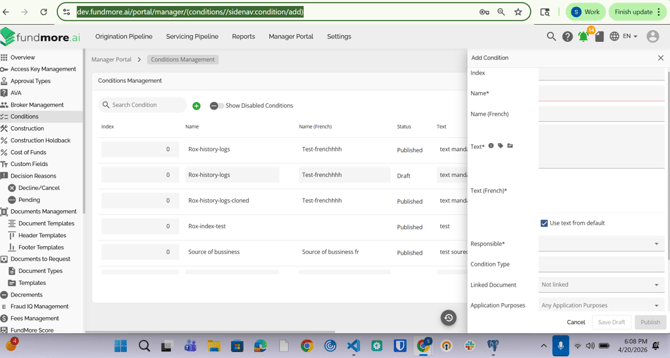
For automatic conditions to work, Admin users need to create ‘rules’ in the condition templates within Condition Management in the Manager Portal. These rules determine when the condition is automatically applied to the application. As you can see in the screenshot below the rule [ALWAYS] has been applied to this condition. So, this condition will always be applied to every application.
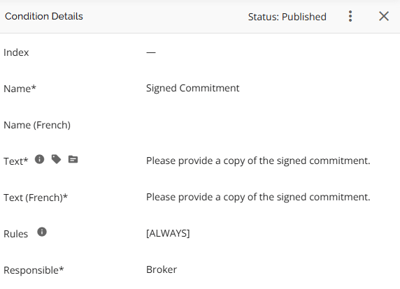
If the condition is configured without a rule then that condition will never apply automatically. It can only be applied manually by a user. In other words, rules must be configured in the condition for that condition to be considered in the application of automatic conditions. As you can see in the screenshot below, there is no rule therefore, this condition will never be applied automatically. It can only be applied manually.
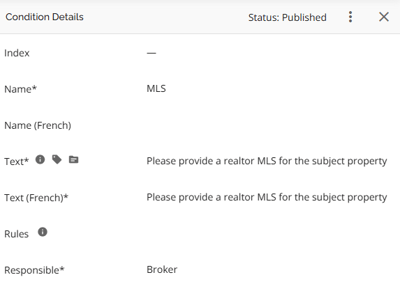
How to Create Rules: Technical Requirements
To ensure the automation engine correctly identifies when to apply a condition, the rule must be constructed with precise syntax. If the naming or formatting is incorrect, the system will fail to parse the data, and the condition will not trigger. Note: there is no error message/system validation that currently exists if the naming or formatting is incorrect.
1) The Plurality Rule
The automation engine evaluates the application as a collection of data. Even if an application only has one mortgage or one property, the system stores these as lists or groups.
Crucial: You must always use the plural name of the category you are targeting. If you use the singular form (e.g., "Mortgage" instead of "Mortgages"), the rule will fail because the system won't find a match.
Correct (Plural) Applicants, Mortgages, Properties, Jobs, DownPayments, FinancialLiabilities, OtherIncomes
Incorrect (Singular) Applicant, Mortgage, Property, Job, DownPayment, FinancialLiability, OtherIncome
2) JSON Formatting
All rules (excluding the [ALWAYS] tag) must be a valid JSON formatted string.
Quotes: All labels (like "Mortgages") and text values (like "REQUESTED") must be wrapped in double quotes.
Braces: Every opening brace { must have a corresponding closing brace }.
Failure: If the JSON is not formatted correctly, the system will encounter an error and the condition will be skipped entirely.
3. Anatomy of a Rule (Sift Logic)
The system uses "Sift" logic, which allows you to query your application data using specific operators. Here is a breakdown of how a rule is built line-by-line:
• The Root Braces { }: Every rule starts and ends with curly braces to define the search criteria.
• The Category Key: You begin by naming the plural category you want to check, followed by a colon (e.g., "Mortgages":).
• $elemMatch (The "Find One" Operator): Since categories like Applicants or Mortgages contain lists of data, you use $elemMatch to tell the system: "Check if any item in this list matches these specific criteria".
Logical Operators:
• $eq / $ne: Checks if a value is "equal to" or "not equal to" a specific word or number.
• $in / $nin: Checks if a value is (or is not) within a provided list of options.
• $gt / $lt: Compares numbers (e.g., check if a value is "greater than" or "less than" a certain amount).
• $gte / $lte: Compares numbers (e.g., check if a value is "greater than or equal to" or "less than or equal to" a certain amount).
• $and / $or: Combines multiple requirements. Use $and if all requirements must be met; use $or if only one needs to match.
Example:
{ "Properties": { "$elemMatch": { "tenure": "CONDO" } } }
Breakdown:
- {: Start the rule.
- "Properties":: Point the system to the property list.
- { "$elemMatch":: Tell the system to look through each property.
- { "tenure": "CONDO" }: Set the criteria—the tenure must be "CONDO".
- }: Finish the criteria check.
- }: Finish the property list check.
- }: Finish the rule.
4. Data Context (What the System "Sees")
The automation only evaluates specific categories that are explicitly shared with the automation engine. You can reference fields within these areas:
• Application: General data such as the purpose of the loan or specific deal-level flags.
• Mortgages: Details regarding the loan, such as the interest rate type or the product chosen.
• Properties: Information about the subject property, including its address, type, and tenure.
• Applicants: Stakeholder information, including their employment details (Jobs) and OtherIncomes.
• FinancialLiabilities: Current debts, balances, and how they are being handled during the loan process.
• Down Payments: The source of the funds (e.g., Gift, Savings, RRSP) and the associated amounts.
IMPORTANT:
What is NOT Evaluated: The automation does not look at internal system activity logs, unmapped credit files, or any data fields that haven't been specifically connected to the application record.
Rules can be used from one environment to another as long as the field names remain the same or are not custom fields that differ between environments.
For more info on what comparison logic is available in sift refer: https://github.com/crcn/sift.js/blob/master/README.md
For more info on mongo db query style refer: https://www.mongodb.com/docs/manual/reference/mql/query-predicates/
There is a standard rule to apply if the lender wants the condition to apply on every application = [ALWAYS]
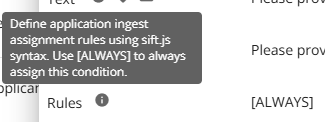
The Always rule needs to be built using the [ ] brackets. All other rules are built using curly brackets { } as noted above.
Here are several examples of some rules that have been configured:
Adjustable Rate Mortgage Condition:

Canada Child Tax Benefit Condition:

Debts to be Paid from Proceeds Condition:

Or

Down payment from Cash Condition:

Purchase and Sale Agreement Condition

Income Salaried Condition:

Rental Lease Agreement Condition:

Automatic Conditions
Once the conditions are configured with rules and the appropriate automation is enabled, automatic conditions will begin working.
Assumptions:
- Automation is the source of truth.
- All automatic conditions, regardless of state, are available for deletion if determined by the algorithm.
- For purposes of audit, automatic condition changes are attributed to the user that caused the change.
- If the feature is enabled, any main object changes trigger the automatic algorithm and conditions are recomputed. There is no user interactivity to approve or reject the recalculated update.
- Re-computations occur once a deal is conditionally approved and will continue to occur until it is locked.
- If a deal is locked and then unlocked, re-computation could start up again.
Triggers:
- Deal Ingestion: Conditions will apply automatically on ingestion (no document request is created).
- Application Changes: Conditions will re-apply whenever there is a change to:
- All properties
- All requested mortgages
- All down payments
- All incomes
- All applicant (stakeholder) changes
- All financial liabilities
- Purpose
- Classification
- Source of Business
- Deal Type
- Lending Tier
- Aggregates
4. Marking an application as Conditionally Approved
5. Stage Transition
6. Conditions will populate on automatic declined applications but without a notification.
Condition Rules will determine if a condition needs to be re-applied. I.E. if the downpayment type was originally identified as ‘Gift’ the relevant gift condition will render. If the downpayment type is changed from ‘Gift’ to ‘ ‘Savings’, the gift condition is removed and the savings condition is added instead.
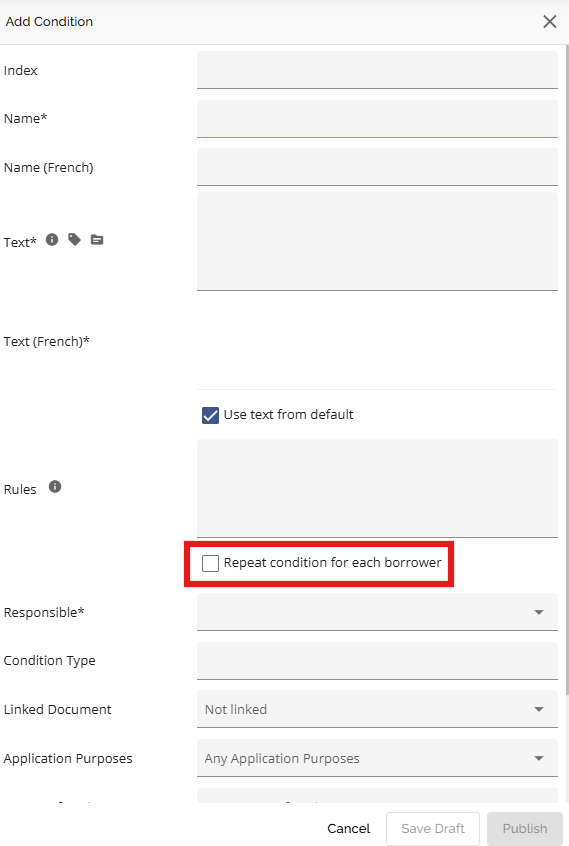
Conditions can be set to “repeat” meaning they can be applied to multiple stakeholders but only applies to objects that are directly tied to stakeholders. For example, if a condition is set to repeat for the income type “Pension,” the system will generate a separate condition for each stakeholder who has Pension income. If you want a rule to repeat you need to check the ‘Repeat Condition for Each Borrower Checkbox when configuring your condition:
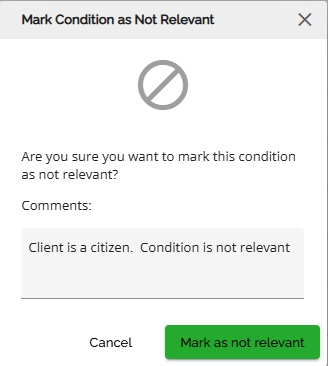
IMPORTANT: Do not delete a rule based condition. If you delete a rule based condition, it may re-appear at re-computation (if the rule still applies). Instead, mark it as Not Relevant. The conditions re-computation logic excludes conditions marked as Not Relevant from automatic condition re-compute and document request processing.

You will get a pop up asking if you are sure. Add a comment and select Mark As Not Relevant.
The icon for the marked condition will change to a circle with a line through it which indicates it has been marked as Not Relevant. Hovering over the icon will display a tool tip showing you what the icon means. 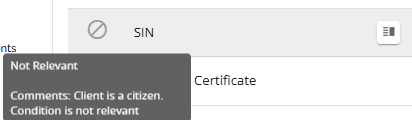
As you progress through the application and automatic conditions are recomputed this condition will remain as is (not relevant) and will not re-populate.
On Manually added conditions:
Manually added conditions can either be added from a preset, or a custom condition. Depending on the option selected, the behaviour will differ.
- Conditions added from Presets
- If a rule does not apply, the condition will be removed from the deal when re-computed.
- If a rule applies, the condition will hold when re-computed.
- Conditions added as a Custom Condition
- These conditions will persist through re-computation, as they are treated as ad hoc conditions. This includes manually added custom conditions as well as edits made to existing custom conditions.
- This behavior also applies to conditions created using the “Duplicate as custom condition” action. While the original condition may have been rule-driven, the duplicated version does not retain those rules and is therefore treated as a custom condition. As a result, any modifications to the duplicated condition will persist through re-computation.
Conditions disabled in Condition Management will be removed from in-flight applications during subsequent recomputations. If a condition template is modified (e.g., cloned and then disabled, or simply disabled), only conditions that match the updated configuration will be generated on the next recomputation. Conditions that matched the previously configured (now disabled) template will not be re-applied.
Key Points:
- Edits to rule-based conditions are not persisted and will be overwritten during the next recomputation.
- Do not manually add or edit conditions with rules as they will get lost when re-compute occurs.
- Conditions with statuses set to Fulfilled, Not Acceptable, or Not Relevant are preserved during re-computation.
Notifications and Audit History
There will be an in app notification whenever conditions have been updated. It will read “There was an update to the conditions on this deal”.
Audit history logs are created as automatic conditions are applied or recomputed and are assigned as created by the user that triggered the automation.
Add condition rule date gating and option to keep disabled conditions
This is controlled by a tenant setting. If you do not see this functionality in your environment it is not enabled. This new functionality was introduced as a result of updating conditions in the Manager Portal function. When updating conditions you have to create a new condition and disable the original one. The system was effectively deleting conditions off of applications in flight when the condition was disabled in the Manager Portal and when new conditions were being created they were being applied automatically to in flight (previously conditioned files) deals where they should not be. This functionality addresses that.
Two new toggles are now available in Manager Portal → Settings → Automations to provide more control over how condition changes affect existing deals:
- Keep disabled conditions on existing deals — When a condition is turned off, it will no longer be automatically removed from deals it was already applied to. This prevents data loss and ensures the deal continues to reflect what was originally communicated to the broker.
- Date-gated condition rules — New or updated conditions will only apply to newly-created deals (from a specified date onward), leaving existing deals untouched.
Previously, any change to a lender's condition library could trigger a recompute that would silently swap out or remove conditions on in-progress deals - a compliance risk. These settings give lenders the flexibility to update their condition templates without affecting deals that are already underway.
For the date-gated condition rule, the following (or similar) must be added to the rules:
{ "createdAt": { "$gte": "2026-06-01" } }
In this case, it will apply to all applications created AFTER June 1, 2026.
For Example:
Previous rule:
{
"Properties": {
"$elemMatch": {
"type": "PRIMARY",
"purchasePrice": {
"$lte": 999999
}
}
}
}
Updated rule (updated to apply to applications created after June 1, 2026):
{
"$and": [
{
"Properties": {
"$elemMatch": {
"type": "PRIMARY",
"purchasePrice": { "$lte": 999999 }
}
}
},
{ "createdAt": { "$gte": "2026-06-01" } }
]
}
Automatic Document Requests
Automatic document requests are synchronized with conditions and their associated document types on the deal. This synchronization is controlled by the Manager Portal automation setting: “Automatically send document requests when linked condition documents change after application is conditionally approved.” This is a lender controlled setting that can be accessed via Manager Portal > Settings > Automations section.
Document requests are generated as a follow-on step to condition computation, ensuring alignment between active conditions and required documents.
Core Behavior
- Document requests will only be sent out once a deal is marked as Conditionally Approved.
- Once marked as conditionally approved, the system sends a single consolidated email notification to the broker.
- This notification is not sent to the submitting agent, even if one is listed on the deal.
- The email includes an Upload Documents link which redirects the broker to the FundMore IQ Portal, where the broker can submit the requested documents.
- The notification includes a consolidated list of all required documents across all applicants, based on:
- Conditions marked as Broker Responsible
- Document types linked to those conditions.
Recompute Behavior
- Document requests are recalculated during condition recomputation and will reflect the latest condition set.
- Any previously generated automatic document requests (e.g., at ingestion) are replaced by the recomputed set at Conditional Approval.
- Documents already uploaded remain in the LOS; however, their associated requests may be removed from the broker portal if no longer applicable.
- The broker portal reflects only current document requests:
- If a document is no longer required (e.g., due to a data change), the request is removed or replaced.
- Previously uploaded documents may no longer appear in the broker portal but remain accessible within the LOS.
- Documents with statuses such as Accepted or Rejected are retained and are not impacted by re-computation.
Manual/Custom Requests
Users should NOT add manual broker-responsible document requests to the LOS, as doing so can result in the request being overwritten during subsequent condition recomputations.
If you need to request a document that is not captured by one of the system’s automatic conditions/document requests, you need to create a custom condition and link the relevant document type to it. If the deal is conditionally approved, the document request will be sent to the broker immediately. If the deal is not yet conditionally approved, the request will be sent when it is approved. Doing this ensures that the request will be included in future automatic condition recomputations without the risk of being overwritten.
Any documents marked as Accepted or Rejected will remain in the LOS during recomputation. Brokers will only see the document requests, not the uploaded documents themselves. For example, if a T-4 is initially requested and the broker uploads it, then a recomputation occurs due to an income change that makes the T-4 no longer required, the T-4 request will be removed or replaced in the broker portal. The uploaded T-4 document will no longer be visible to the broker but will remain in the LOS. This ensures that completed documents are preserved internally even if the request changes for the broker.
Notifications and Audit History
The broker receives an email notification whenever document requests are generated or updated. The notification message reads: “There was an update to the documents on this deal.” This ensures that the broker is always aware of any changes to document requirements resulting from condition updates or re-computations.
Audit history logs are created as automatic documents are applied or recomputed and are assigned as created by the user that triggered the automation.