![Fundmore-Logo.png]](https://help.fundmore.ai/hs-fs/hubfs/Fundmore-Logo.png?height=50&name=Fundmore-Logo.png)
Table Of Contents
Heating Cost Rules page in Manager Portal
How Heating Cost Is Calculated
Living Space Verified Checkbox
Automatic Recalculation Triggers
Introduction
The Heat Matrix (Heating Cost Calculator) automatically calculates the Annual Heating Cost for properties when a matching Heating Cost Rule has been configured in the Manager Portal.
This removes the need for manual entry while ensuring consistent and accurate heating cost values across applications.
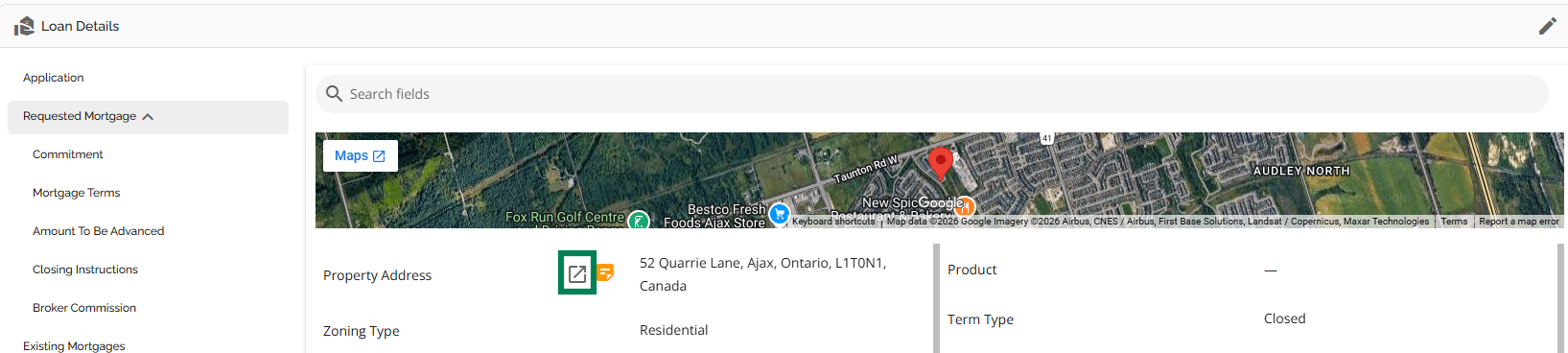
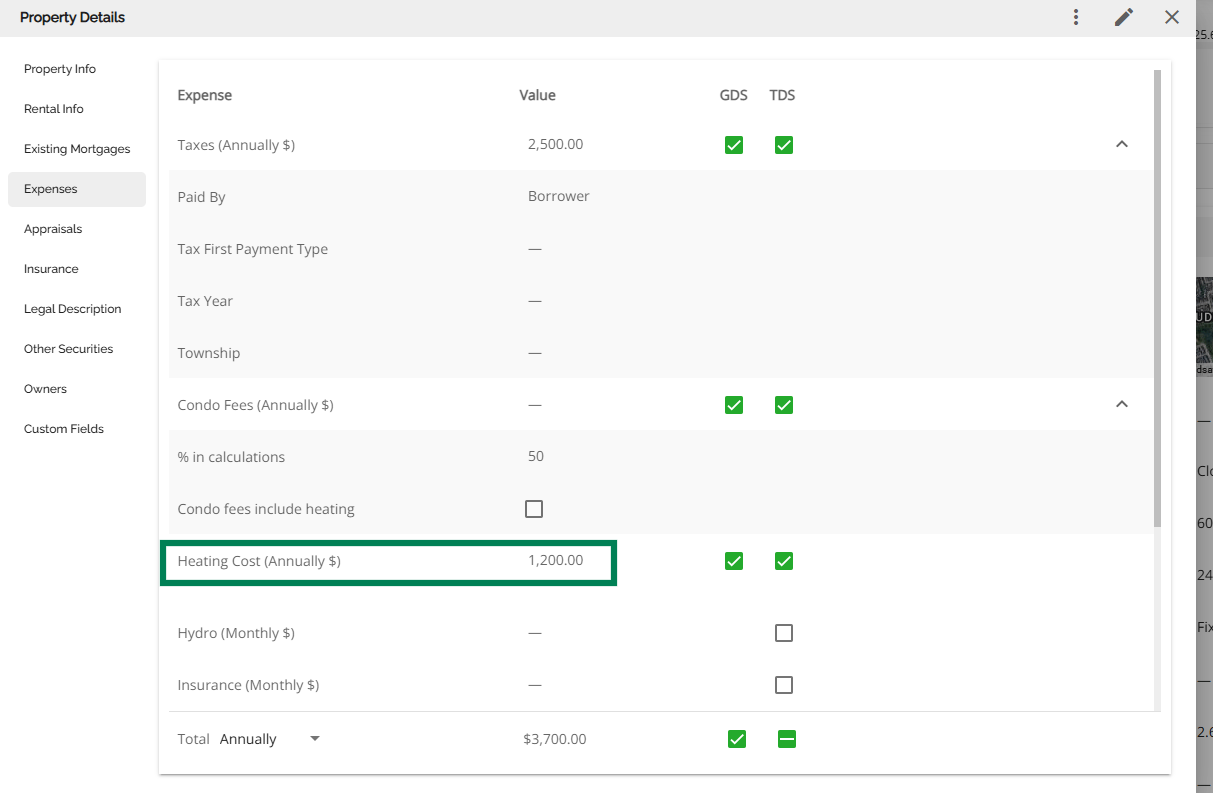
The Heating Cost (Annually $) field can be found in the Expenses tab for each property. This tab is located within the Property Details window for each property on the deal (this includes the subject property, other properties, and securities). To access the Property Details window, users can click on the "View Property Details" icon inline with the property address.
Assumptions
- If a configuration exists for a given combination, the calculator will always use that value.
- The value returned by the calculator will override the heating cost ingested from POS.
- The calculator does not work if the "Condo Fees include heating" checkbox is checked.
- It will apply to all properties in the application: subject property, securities, other properties, etc.
Heating Cost Rules page in Manager Portal
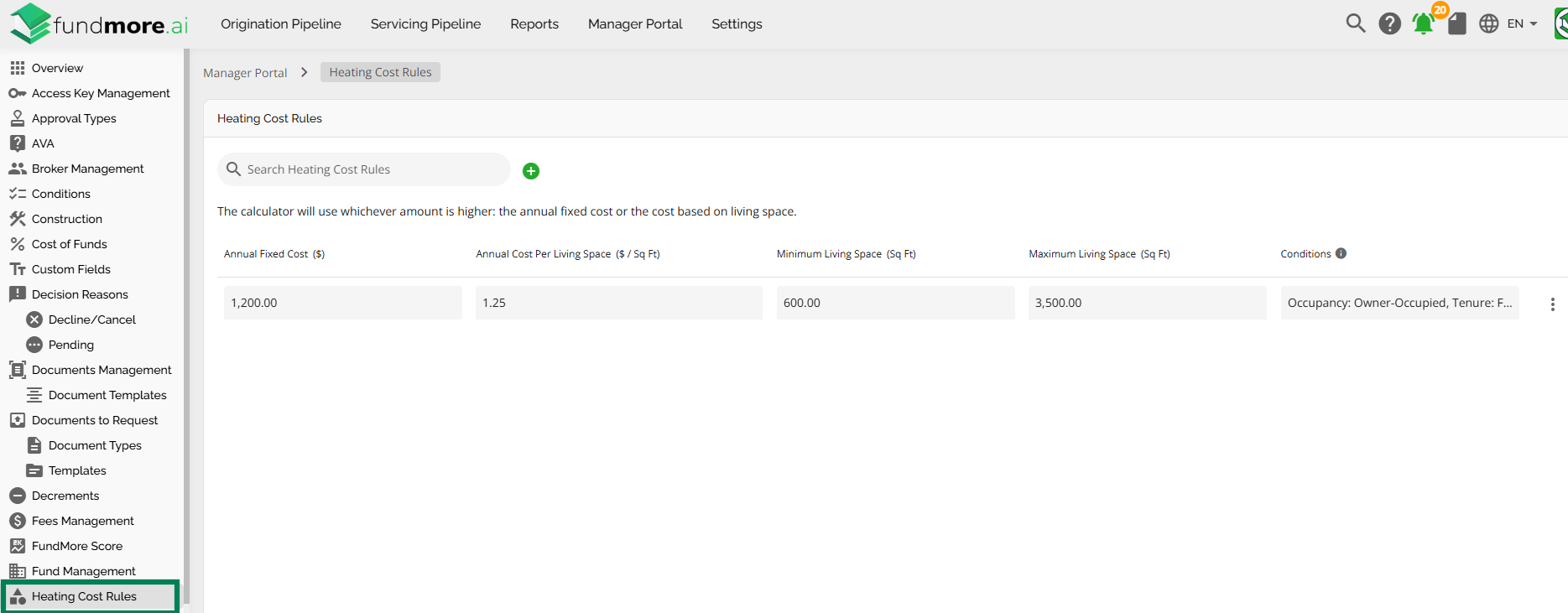
A backend calculator will automatically calculate the property heating cost based on the rules configured in the Manager Portal. The rules used by the calculator are configured through the Manager Portal page called Heating Cost Rules.
This page allows administrators to create, edit, and manage the rules that determine how heating costs are calculated based on a property’s attributes. Rules can be set up either as a fixed annual cost or as a cost calculated based on living space. If both cost types are configured, the calculator will apply whichever amount is higher - the fixed annual cost or the living space-based cost.
Each rule includes:
- Annual Fixed Cost ($) - currency
- Annual Cost per Living Space ($ / Sq Ft) - currency
- Minimum Living Space (Sq Ft) - number (positive)
- Maximum Living Space (Sq Ft) - number (positive)
- Conditions
- Occupancy - multi-select dropdown
- Dwelling Style - multi-select dropdown
- Dwelling Type - multi-select dropdown
- Tenure - multi-select dropdown
- Living Space Verified - boolean
If no condition is specified for a field, the rule defaults to apply to all values for that field.
When defining conditions in a new rule, the calculator interprets them as follows:
- Selections within the same field are treated as “OR.”
Example: If “Owner-Occupied” and “Rental” are both selected under Occupancy, the rule applies to either occupancy type. - Different fields are combined using “AND.”
Example: If Occupancy = (Owner-Occupied OR Rental) AND Dwelling Type = (Condominium), the rule applies only when both conditions are met.
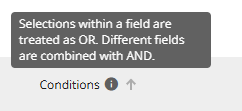
Next to the Conditions header, there is a tooltip with the message: Selection within a field are treated as OR. Different fields are combined with AND.
Each rule can be viewed, modified, or removed.
Adding a New Rule
New heating cost rules can be created through the “Add Heating Cost Rule” form.
Admins can define the living space range, fixed cost, variable cost per Sq Ft, and any conditional filters such as occupancy, dwelling style or dwelling type.
When a new rule is entered, the system will:
- Validate the living space range, ensuring the minimum value is less than or equal to the maximum value.
- Check for overlaps with existing rules that share the same occupancy, tenure, and overlapping living space ranges. If an overlap is detected, the Add button will be disabled and the rule cannot be saved.
Once saved, the new rule becomes immediately active.
Updating heating cost rules
Once a rule is successfully added, it can be edited. Admins that update existing rules must be careful not to create rules with overlapping living space ranges or conditions, as it may lead to inconsistent and unpredictable application of costs.
Any combinations that are not covered will result in the Heating Cost field being left editable, allowing users to manually enter a value in the application.
When admins update the heating cost rule, existing applications are not automatically updated. Instead:
- The application continues to show the original value.
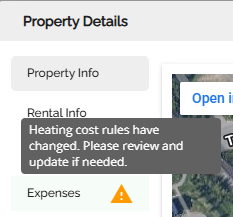
- A warning indicator appears in the Expenses tab, letting the user know that the heating cost rules have changed and the displayed value may be outdated.
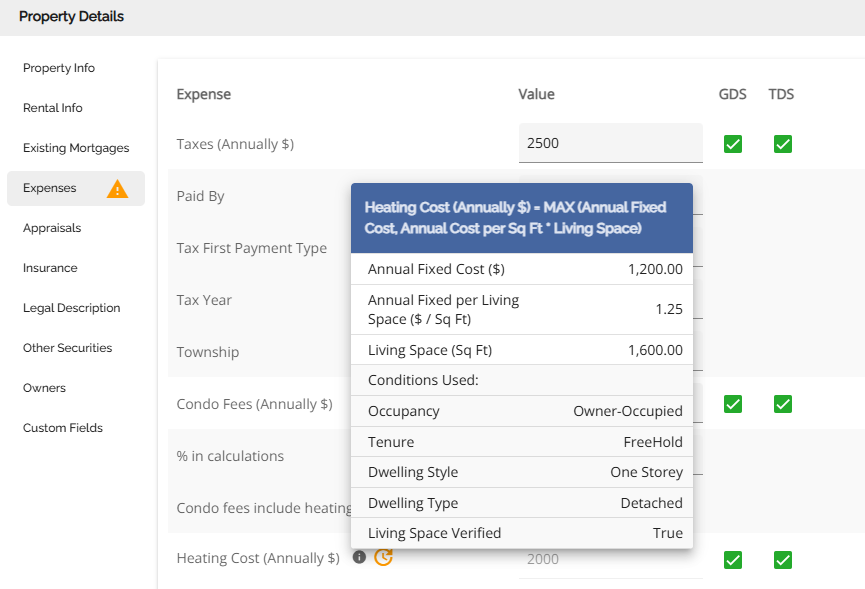
- In the Heating Cost field, an info icon is available. Clicking it shows the specific heating cost rule that was applied when the value was calculated.
- A refresh (reapply) button is also available next to the Heating Cost field. By clicking it, users can fetch and apply the latest value based on the current rules. If a matching rule no longer exists (e.g., the admin deleted the configuration for that combination), the field should be made editable, allowing users to manually update the cost.
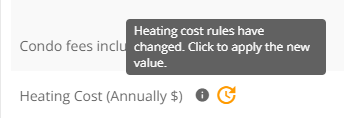
If no matching rule exists after reapplying, the Heating Cost field becomes null and editable.
Heating Cost Calculation
How Heating Cost Is Calculated
When a Heating Cost Rule applies to a property, the system automatically populates the Heating Cost (Annually $) field based on the rule configuration. When evaluating a property, the system considers (where applicable):
- Living space
- Property attributes (e.g., Occupancy, Dwelling Type, Tenure, and Dwelling Style)
- Living Space Verified status
These values are compared against the active heating cost rules. If both a fixed cost and a living-space-based cost are defined in the matching rule, the system applies the higher value.
How it is Applied
- If the rule includes both a fixed annual cost and a living space–based cost, the system calculates both values and applies the higher amount.
- Any heating cost value received from POS is overridden by the system-calculated value.
- If a rule applies, the Heating Cost field is calculated, and the field is locked, becoming a read-only field. If no Heating Cost Rule applies to the property, the Heating Cost field remains editable and can be manually entered by the user.
Living Space Verified Checkbox
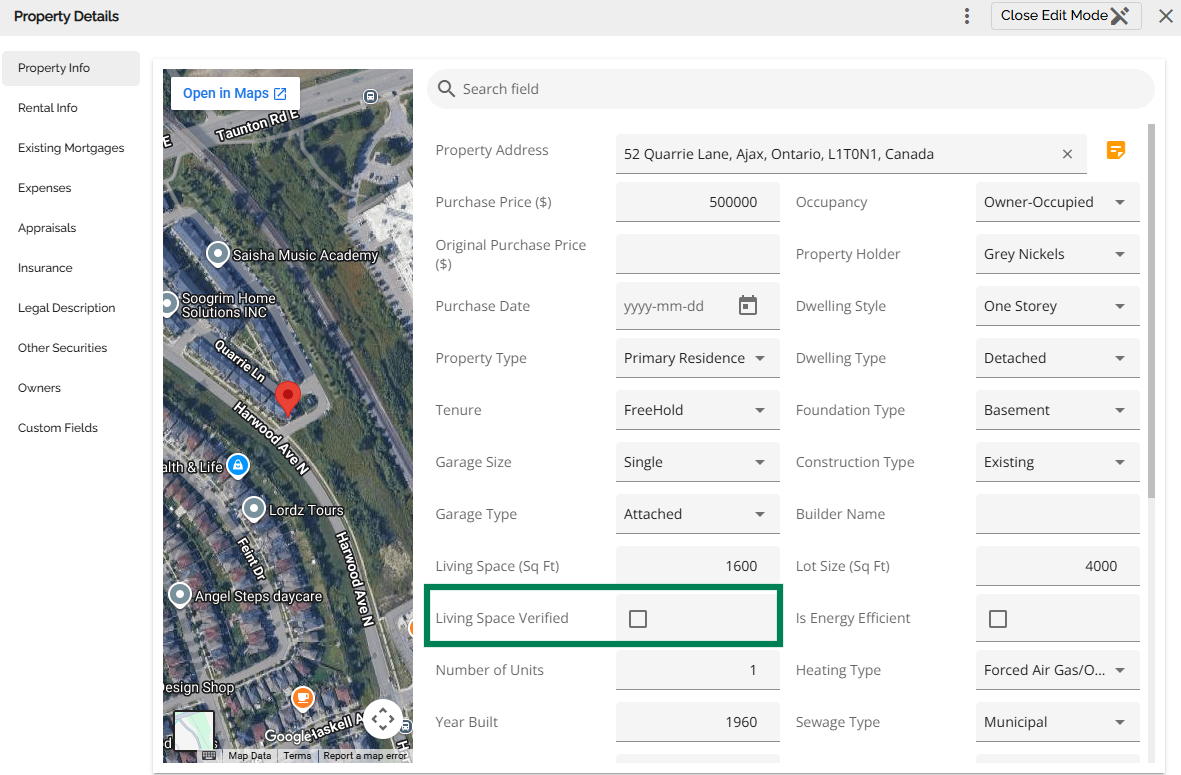
A Living Space Verified checkbox is displayed beneath the Living Space (Sq Ft) field. It allows users to indicate whether a property’s reported square footage has been validated by a trusted third party.
- This field defaults to unchecked.
- If checked, it indicates that the living space has been verified by a trusted third party and will apply the relevant heating cost rule.
- May affect whether a heating cost rule applies.
- Changing this value may trigger a recalculation of the heating cost.
Automatic Recalculation Triggers
When property details that influence the heating cost calculation are updated, the calculator is triggered and returns a value consistent with the current set of values in the application. This behavior applies in all scenarios:
- when no heating cost value existed previously
- when a heating cost value was manually entered
- when the previous heating cost value was generated by the calculator.
Details that influence the heating cost calculation include:
- Living space
- Occupancy
- Dwelling attributes (Style & Type)
- Living Space Verified status
Users should check the Heating Cost (Annually $) field any time they make changes to any of the above details
The calculation or recalculation of heating costs will trigger a debt service recalculation.
Manual Entry Scenarios
Users may manually enter heating costs when:
- No matching Heating Cost Rule exists
- Condo fees include heating
- A previously applied rule has been removed
In these cases, users must manually enter the annual heating cost.
History Log
All activity within the Heating Cost Rules module is recorded in the history log:
Adding, editing, or removing heating cost rules in the Manager Portal will trigger a history log.
In the application, any change to the heating cost value will also generate a log entry.
Marking the Living Space as verified, by checking the Living Space Verified checkbox, will also trigger a history log.
To view application history, select the History icon at the bottom of the screen.
Each entry displays:
- The change that was made
- The user who made the change
- The date and time the change occurred
- This ensures traceability of all changes