![Fundmore-Logo.png]](https://help.fundmore.ai/hs-fs/hubfs/Fundmore-Logo.png?height=50&name=Fundmore-Logo.png)
Table of Contents
Manage Duplicates Pop-up Screen
Introduction
The Related Applications feature allows you to check if multiple applications have been submitted with the same applicants, property address, and/or broker. It also shows the application stage to determine if the related application is active, declined, or archived.
The Manage Duplicates feature allows you to handle multiple applications at once by choosing an action for each individual application. You have the options to keep, decline, delete, or archive the application.
Note: There is no automation in the LOS to indicate if there is a duplicate or related application if not a resubmission! Users must use the Related Applications functionality to search for related or duplicate applications.
Related Applications
Location
- Select Pipeline View found on the top menu.
- Click on the application you wish to work in.
- In the application dashboard, click the ‘More Actions’ ellipsis (
 ) in the top right-hand corner.
 - Selected “Related Applications” from the drop down menu.
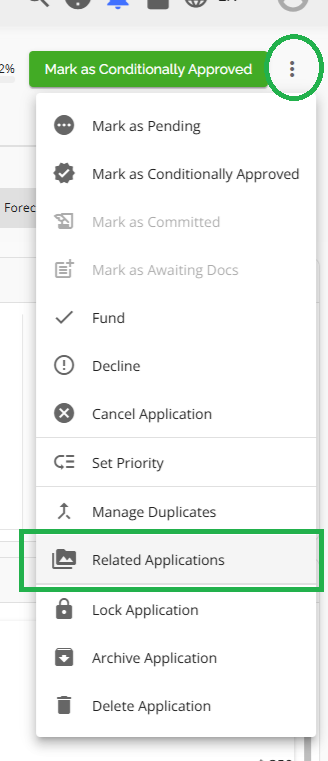
Related Applications Pop-Up

When users are searching for other applications with similar borrowers, we display all applications that feature either the borrower or co-borrowers. Additionally, we provide a column in the search results that clearly indicates where the match has been found.
The Related Applications pop-up groups similar applications by applicants, property and broker attributes. Each tab displays the primary applicant, Other Applicants, Current Application Stage, Address, Purpose, Loan Amount and Closing Date.
Borrower Tab - This is the default tab containing a list of applications with the same applicant names.
Property Tab - This tab generates a list of applications with the same primary property address.
Broker Tab -This tab generates a list of applications that have the same broker associated with the deal.
Note: For an application to list as a related application the values must be an exact match. I.E. Property Tab. There is an application with the subject property listed as 19 Carola Street, Nepean, Ontario K2G 0X9 and another application with the same property address listed as 19 Carola St., Nepean, ON K2G 0X9. These will not match on property because of the input differences (Street vs St and Ontario vs ON).
This will apply to all tabs - borrower, property, & broker.
To take a deeper look at an application within the generated list, click on the applicant’s name found in the “Primary Applicant” column. This will redirect you to that application dashboard in a new tab.
Archived applications are marked with an icon ( ) that appears on the far right of the pop-up screen (beside the ‘Closing Date’ column).
Note: This feature is for viewing purposes only. If you identify any active applications that you would like to archive, decline, delete or keep, proceed to the Manage Duplicates section.
Manage Duplicates
The Manage Duplicates functionality allows you to view and manage active applications with the same primary applicant and property address. It is intended to clean up the list of active applications on the Pipeline View by selecting one of the options found in the Action dropdown menu. These options include: keep, decline, delete, or archive.
Location
You can access the Manage Duplicates feature in two different locations, Pipeline View and Application Dashboard.
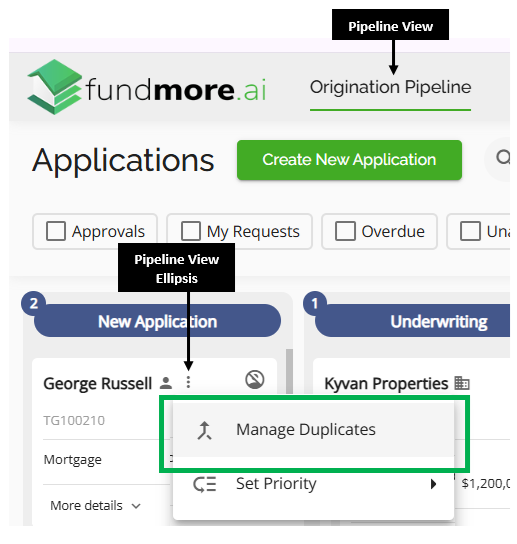
Pipeline View Location - Within the Pipeline View, hover over the application you wish to manage. Click the ellipsis that appears in the top right corner of the application tile and select ‘Manage Duplicates’ from the drop-down menu,
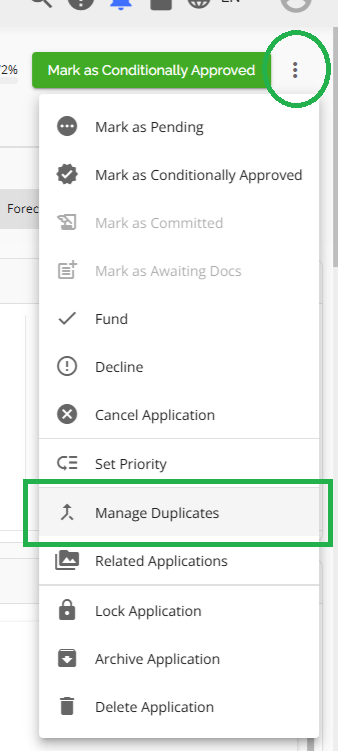
Application Dashboard Location - Select the application you wish to manage. In the application dashboard, click the ‘More Actions’ ellipsis on the top right-hand corner, and select “Manage Duplicates” from the drop-down menu.
Manage Duplicates Pop-up Screen
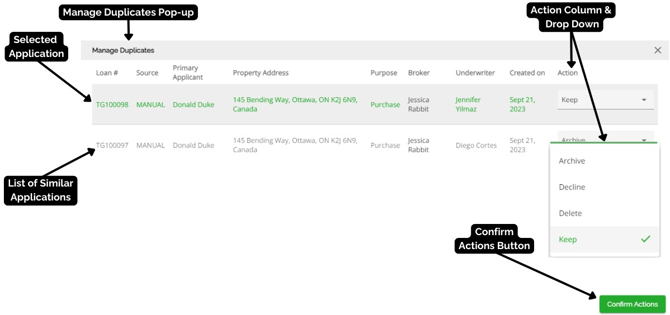
The Manage Duplicates pop-up displays the current application selected and a list of other applications with the same Primary Applicant and Property Address. The application you selected is the first application on the list in the green text, and the similar applications are identified below with a black text. In the ‘Action’ column, you can select an option from the drop down menu for each individual application to simultaneously organize them as desired.
To view an application from the list, select the underlined text in the ‘Loan #’ column. The link will redirect you from the pop-up screen into the application dashboard.
Actions
In the Manage Duplicates pop-up screen, you can select one of the four options found in the drop down menu in the Action column. The options include:
Keep -This is an active application and it will remain in the current stage.
Delete - The application is deleted from the system.
**Note:FundMore.ai does not advise deleting any applications.
Decline - The application will be locked and will appear in the “Decline” stage.
Archive - The application will no longer be active and can be viewed on the “Show Archived Applications” Pipeline View.
Once you have selected the desired action for each application, click on the ‘Confirm Actions’ button. This will execute the actions selected in the Action column.
The Decline and Archive actions can be undone if needed. You simply follow the directions for taking an application out of Decline or Unarchiving the application.