![Fundmore-Logo.png]](https://help.fundmore.ai/hs-fs/hubfs/Fundmore-Logo.png?height=50&name=Fundmore-Logo.png)
Table Of Contents
IntroductionIntroduction
Assigning & Unassigning Team Members
Assigning a Broker in the Team List
Directing a Message to a Specific Team Member
Introduction
The application dashboard's left-hand menu offers various functionalities and data, many of which are covered in other guides. This Product Feature Guide will focus on important, previously undiscussed features: Team and Chat functionalities.
‘Team’ Tab
Assigning & Unassigning Team Members
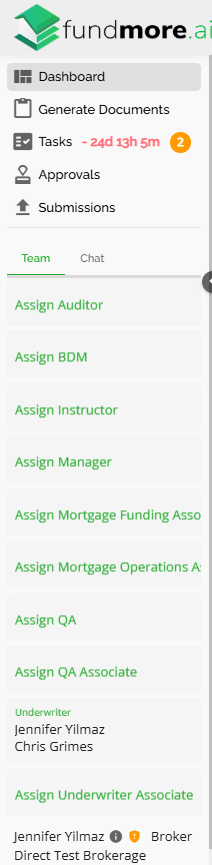
The Team list is located in the left menu bar of the application dashboard, just below the Application Menu tabs. Here, you have the ability to add and remove team members to specific user roles according to your company's role setup. These roles are assigned to individuals who are responsible for the entire file. Additionally, you can assign brokers to the application if one has not already been assigned.
Users can also be assigned automatically via the system at ingestion if your company has set up automatic assignment.
Typically, you will find that the "Team" section is already prefilled and may have the same members for most new files by default. Your company's default settings will be agreed upon during your company’s onboarding, or it can be set up by the company within the Manager Portal.
When applications are submitted via a POS system, they will be ingested with the submitting agent and the agent on deal as indicated in the POS. The submitting agent will appear in the Stakeholder list within the Stakeholder widget and only the agent on the deal will populate in the Team list.
Assigning a Role
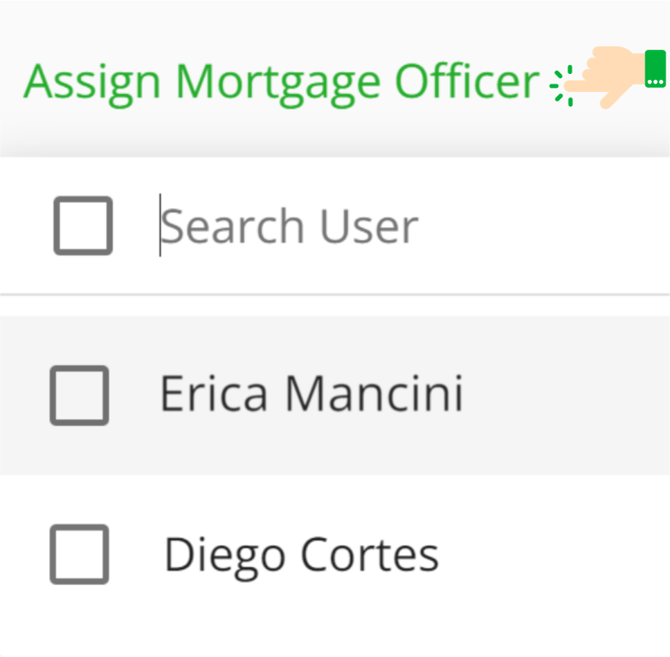
You can manually assign a user to a role within an application by selecting the header of the role you wish to assign a user to. When the role header is clicked, a drop down will appear listing all users that have been set up in the system with that role. To assign a role to a user, simply find the user's name in the dropdown menu and check the checkbox located to the left of their name. You can remove (unassign) a user from a role by simply unchecking the same checkbox. You can assign or unassign multiple users at once if necessary.
If users assigned to roles are changed (by removing one and adding another simultaneously) it is important to note that any tasks that were assigned to the original user will re-assign to Unassigned. If a user is removed from the team list any tasks assigned will revert to Unassigned. Once a new user is added, any tasks assigned to that role will be assigned to the new user.
When the checkbox is selected, this will assign the user to the application. The assigned user will receive a notification in the application and via email. Email notifications will only be received if they have enabled the appropriate notification settings in their user profile. This notification will inform them that they have been assigned to the application. You are able to assign multiple users to the same role if necessary.

Note: A user will only appear within the drop down if they are assigned that role in the User Management section within the Manager Portal.
Once users are assigned to the application, they can be tagged on chat messages within the application (i.e. Chat Functionality explained further down in this guide). The assigned user will also have the ability to work on the application, view the application history, and access the application notes.
Assigning a Broker in the Team List
Note: This is only relevant if there is no broker already assigned to the deal or assigned brokers were removed.
Assigning a broker differs from assigning a user within the platform. When the Broker header is selected under the Team tab, the ‘Add Stakeholder’ pop up will appear with a list of the Verified Brokers from within the Manager Portal. As a rule, if a deal comes in via a POS system, the Broker will already be assigned to the deal. This functionality is to enable you to add a broker to the deal if none was assigned.

To locate a broker in the list, enter any relevant text or keywords associated with the broker in the search box at the top of the pop-up. The list will then display all brokers that match the search criteria in a list view. You can also find a user by scrolling through the list and clicking on the broker line you wish to assign to the application.

After a Broker is selected, the pop up will direct you to the Broker details. Confirm the details and on the bottom right of the pop up by clicking on the ‘Next’ button. If the broker details are incorrect, you can change the broker by selecting the ‘Back’ button.

After clicking the 'Next' button, you will be taken to the next page in the pop-up where you can choose whether or not to notify the broker about a Document Request. To notify the broker, choose 'Yes'. If you do not want to notify the broker, select 'No'.
Once you are satisfied with the notification choice, click the green "Add" button at the bottom right corner and the broker will be assigned to the application. The broker will appear at the bottom of the team list, both in the left-hand menu bar and within the ‘Stakeholder’s Details’ widget. The Broker Header in the Team List will disappear, disabling you from adding any additional brokers to the Team List directly. You are still able to add additional brokers to any application but to do so you must add them from the Stakeholder widget. To learn more about brokers, their warning badges, how to add additional, and icons, see the 'Stakeholder's Details' Widget Product Feature Guide. You can also find more information about the brokers listed in Manager Portal by viewing the Broker Management Product Feature Guide.
Note: Brokers will appear in the team list in alphabetical order, not in the order added.
‘Chat’ Tab

The chat feature was designed to facilitate direct communication between team members within the application. The Chat feature tab is located in the left menu bar of the application dashboard, just below the Application Menu tabs. To access the chat feature, simply click on the chat tab. This will allow you to both read and send chat messages. The Chat functionality is deal specific meaning, you cannot chat with anyone that does not have access to the LOS or is not assigned to the application.
There does not appear to be a character limit in chat. We have tested up to 1000 characters without issue.
Chat Message & Ellipsis

Within the chat box, you have the ability to view all previous messages. To access older messages, simply use the scroll bar located on the right side of the box. Each message in the box is accompanied by an ellipsis on the right side of the text.
Clicking on the ellipsis provides the options to edit or delete your message:
Edit - To edit a message that you have sent, select the edit option. This will bring up your original message in the text box, allowing you to make any desired changes. After you have made your edits, click the send button again to send the updated message. Users can only edit chat messages they have sent, they cannot edit anyone else’s chat messages.
Note: You have a 30-minute window to edit a chat message. Once this time has passed, the message will be locked and can no longer be edited.
Copy and Paste - While users cannot edit another user’s chat message, they can copy and paste the original chat message and make edits that way, however, that will appear as their own chat message, not the original sender’s.
Delete - To delete a message that you have sent, select the delete option. When delete is selected, a pop-up will appear asking for confirmation. You can click the 'Delete' button again at the bottom right to proceed with deleting the message, or you can cancel this action if you change your mind. Users can only delete their own chat messages. They cannot delete anyone else’s chat messages.
Note: You have a 30-minute window to delete a chat message. Once this time has passed, the message will be locked and can no longer be deleted.
Sending a General Message
You have the option to send general chat messages that are not addressed to anyone specifically, or you can tag a specific team member. To send a general message, simply type your message in the "Send a message" field at the bottom of the chat tab and press enter or click the right-pointing arrow  .
.
There are no notifications sent on General messages.
Directing a Message to a Specific Team Member
To communicate directly with a specific team member, you can tag them in your message using the syntax @NAME. Once you type the @ character, the system provides a list of the team members assigned to the file. Simply click on the team member’s name to tag them. This will notify them of the chat message and they will receive an email notification (if enabled) and see the notification bell icon turn green. You can tag team members anywhere in your message - at the beginning, middle, or end.
How it Works:
Email notifications are sent every 30 minutes. Email notifications will only be sent if the user has not seen the message in the chat within the LOS. If a user is Out-of-Office and they are tagged in a chat message, their delegate does NOT get notified. If the user has the notification setting ‘Notify me when I am mentioned in a chat’ toggled off they will not receive an email notification either. Furthermore, the timestamp in the notification is always indicated in EST. However, the date and time in your email will show in local time. So, If you are not in the same time zone, it may look like there is a delay when there really isn’t.
In app notifications are sent instantly if the user is logged into the system.
Understanding your daily chat experience:
The user must have the notification “Notify me when I am mentioned in a chat” enabled.
If you are active in the application with chat open within 30 minutes of the chat message being entered, the email notification will not be sent. The point of the email notification is to alert you if you are not active in chat. We only send the email notifications if you did not see the notification from chat.
If you are active in the application but do not have chat open, the notification will be sent.
If you are active with chat open in another application, the notification will be sent.