![Fundmore-Logo.png]](https://help.fundmore.ai/hs-fs/hubfs/Fundmore-Logo.png?height=50&name=Fundmore-Logo.png)
Table of Contents
Paginate Archived Deals in Pipeline
Archiving an Application
The ‘Archive Application’ button is a useful tool to manage and clean up the active applications in the Pipeline View. It enables you to transfer and store applications in the Archived Applications Pipeline for viewing or audit purposes either manually or automatically. For instance, applications that have reached the 'Funded' or 'Declined' stages can be archived to declutter the applications displayed in the Pipeline View. The ability to archive or unarchive an application depends on your role and the permissions set by your company.
There is one permission that is linked to both Archive and Unarchive. It is: “Can archive applications”. This one permission will allow you to archive and unarchive if enabled, otherwise you can not perform either action.
Automation options:
There are 4 automation options that can be enabled in the Manager Portal by users with the appropriate permissions depending on your environment:

Note: The “Archive funded deals only when all products in the deal have the status “Final Report Accepted”” is client specific and may or may not be relevant or appear in your environment.
Toggling these on and setting the number of days will ensure that the system moves applications to the archived pipeline automatically and therefore does not need to be manually managed.
To archive an application manually:
- Open the application from within the Pipeline View.
- Click on the ‘More Actions’ ellipsis found on the right-hand side of the application
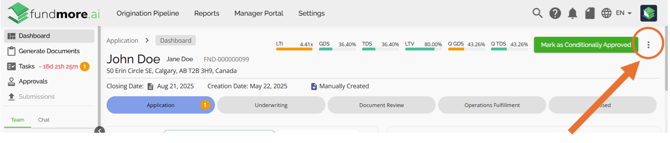
-
In the drop-down list of actions, click on the ‘Archive Application’ option:
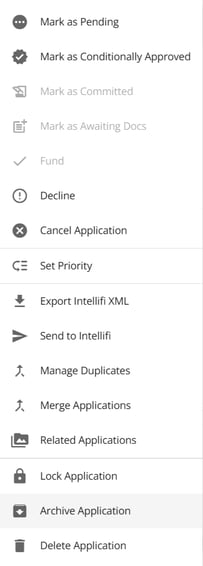
- A warning message pop up will appear asking you to confirm your action:
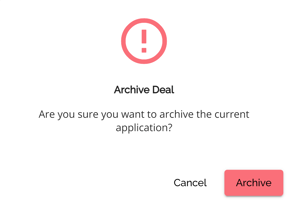
- Click the “Archive” button. Your application will now no longer appear in the Origination Pipeline View but will be visible in the Archived Pipeline View.
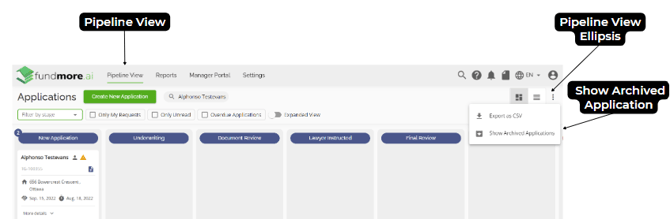
To view the application that has been archived, you must go to the Pipeline View and select the ellipsis found at the top right corner of the screen. Click on the ‘Show Archived Applications’ option from the drop-down list.

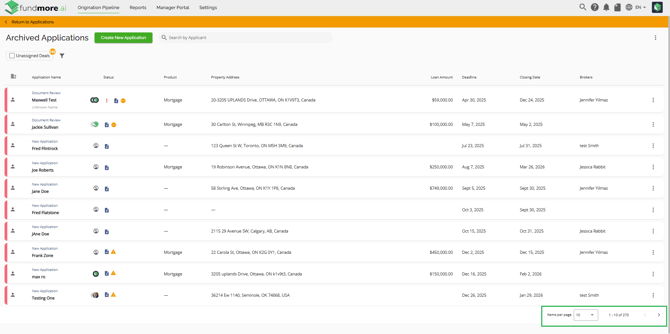
This will direct you to the Archived Applications Pipeline view displaying all the applications that have been previously archived. Click on ‘Return to Applications’ (highlighted in orange) to return to the active Pipeline View.

Paginate Archived Deals in Pipeline
We have introduced pagination for archived deals in the pipeline to improve performance and user experience. This update ensures that archived deals load efficiently, preventing slowdowns when managing a large number of records. Meaning it only fetches between 5-100 deals at a time therefore, there is no limit on archived deal count when using pagination. Users can now navigate through archived deals seamlessly with paginated results. You can filter archived applications by using the available filters to quickly narrow and refine your search results.
Note: This switches the Archived Pipeline to a List View by default. When you return to the Origination Pipeline, it will default to a List View as a result. You can switch back to the Board (Kanban) View while in the Origination Pipeline.
Unarchiving an Application
- Navigate to the Archived Applications Pipeline View.
- Open the application you wish to unarchive.
- Click on the ‘More Actions’ ellipsis found on the right-hand side of the application.
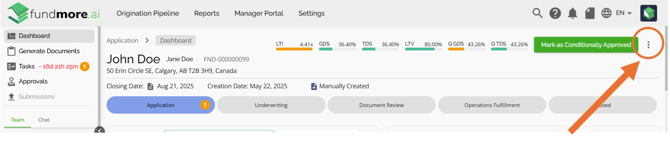
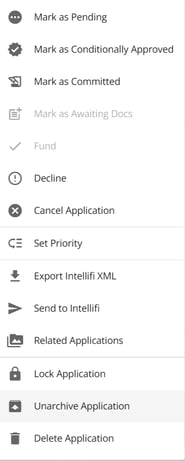
- In the drop-down list of Actions, click on the ‘Unarchive Application’ option.
- An Unarchive Deal pop up will appear asking if you are sure you want to unarchive the current application.
- Select the “Unarchive” button and your application will move to the stage it was in when it was archived, and will be visible in the Pipeline of the active deals.

Locking an Application
Applications are typically locked when they are completed, preventing changes from being made on the application that might affect servicing considerations. Additionally, applications may also be locked for other reasons, such as pending an application, to maintain the integrity of the application for comparison with future applications from the same applicant. The ability to lock or unlock an application depends on your role and the permissions set by your company. In some cases, locking may also occur automatically when a file is declined, cancelled, or funded. You can easily identify locked applications in the Pipeline view by the orange lock icon 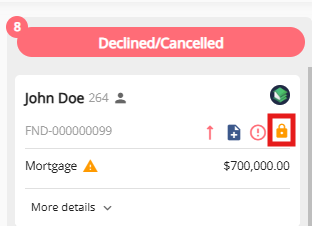
and in the dashboard with an orange warning bar at the top indicating that the application has been locked.

To lock an application:
- Open the application from the Pipeline View.
- Click on the ‘More Actions’ ellipsis found on the right-hand side of the application.
- In the drop-down list of Actions, click on the ‘Lock Application’ option.
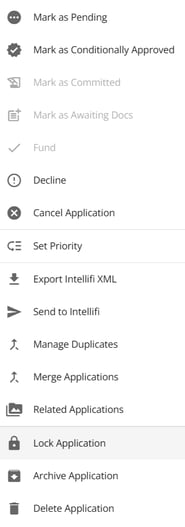
- Once a user clicks the ‘Lock Application’ option, a pop up will appear:
- In the first field, select the option which best suits why you are locking the application. This list is managed in the ‘Lock Reasons’ section of the Manager Portal.
- In the second field, you can add any relevant notes in the ‘Add a reason comment’ field.
- When you are satisfied with these fields, click the ‘Lock’ button on the bottom right corner.

When the application has successfully been locked, a warning bar will appear on top of the dashboard stating ‘This application has been locked’. Once this happens, users will no longer be able to edit or move the application through the pipeline.
The application will also maintain the stage transition history at the point when it was locked. So, if it is unlocked, it returns to the stage it was in when it was locked and that is visible to the user.

Unlocking an Application
It may be necessary to unlock an application once it has been locked. Depending on the situation, applications are typically unlocked when edits need to be made for final review prior to funding or declining. By locking an application, you preserve the integrity of the deal and are able to compare it to subsequent applications for the same applicant. Unlocking the application to make edits enables you to make adjustments to re-lock it or continue working on it as the user sees fit. Users with the necessary permission to lock an application also have the capability to unlock it.
To unlock an application:
- Open the application from within the Pipeline View.
- Click on the ‘More Actions’ ellipsis found on the right-hand side of the application, and select the ‘Unlock Application’ option.
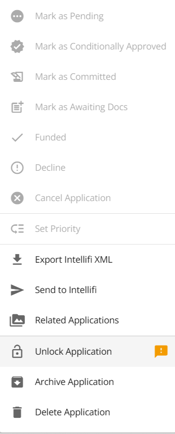
Or, click on “Unlock Application” in the orange banner across the top of the dashboard:

- In the first field, select the option which best suits why you are unlocking the application.
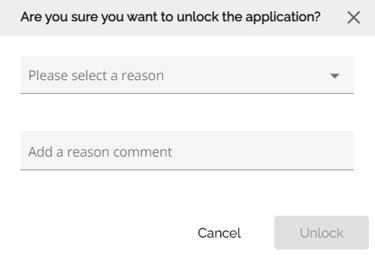
- In the second field, you can add any relevant notes in the ‘Add a reason comment’ field.
- When you are satisfied with these fields, click the ‘Unlock’ button on the bottom right corner of the pop up or to cancel out of the action click the ‘Cancel’ button.
When the application has successfully been unlocked, the warning stating ‘This application has been locked’ bar will disappear from the top of the dashboard. Users will then be able to edit or move the application through the pipeline, as they would prior to the application being locked.
Deleting An Application
Archiving an application is the recommended practice, but users also have the option to delete an application if needed provided they have the necessary permissions. When an application is deleted, it is permanently removed from the system, and the user will no longer have access to any of the information associated with the application.
To delete an application:
- Open the application from within the Pipeline View.
- Click on the ‘More Actions’ ellipsis found on the right-hand side of the application.
- In the drop-down list of Actions, click on the ‘Delete Application’ option.
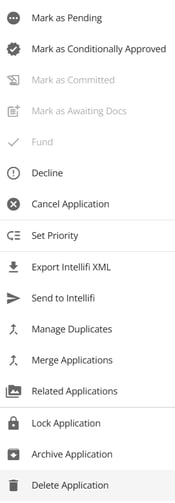
- A pop up will appear with the message ‘Are you sure you want to delete the current application?’:
- To delete the application, click the ‘Delete’ button, located on the bottom right of the pop up or to cancel this action, click the ‘Cancel’ button.

Important: Once the application is deleted, the user will no longer be able to access the application or data within it, as it will be completely removed from the system.